


×
Give us a call! – (972) 505-3245
You have questions, we have answers!
If you can’t find what you’re looking for, we’re only a message away. Reach out to us via live chat.
Yes, they sure will, and when you create a product in Woocommerce, it will real-time sync to QuickBooks . Then if you edit the product or its inventory in QuickBooks – it will real-time sync back to WooComerce and Vice Versa.
Absolutely. Our WooCommerce sync has simple settings that allow you to turn real-time sync with QuickBooks on or off, as well as turn real-time sync on or off for particular data types.
We give you full control over mapping (linking) your WooCommerce and QuickBooks data – with automapping built in to assist you. You can change the mappings at any time, and data doesn’t have to match – your product doesn’t need to be named exactly the same in both systems, for example.
In addition, you will only have to map data that exists in both systems. As our software syncs across new data, like products or customers – it will automatically map it!
If they have the same order number in QuickBooks, MyWorks Sync will find them, and can easily update them!
Our sync is compatible with all versions of QuickBooks (and regional taxes / currencies), including in the United Sates, United Kingdom, Canada, Australia, India – and any country where QuickBooks is compatible. The full list of countries that QuickBooks supports may be found here.
MyWorks is managed within WordPress and has a deep integration with WooCommerce to feel like a seamless part of your store.
This direct connection between WooCommerce & QuickBooks means no third parties get access to your data.
We have special compatibility that we have built into our core sync and is included at no cost for users on all our plans. You can access this in your sync at MyWorks Sync > Compatibility, as shown below.
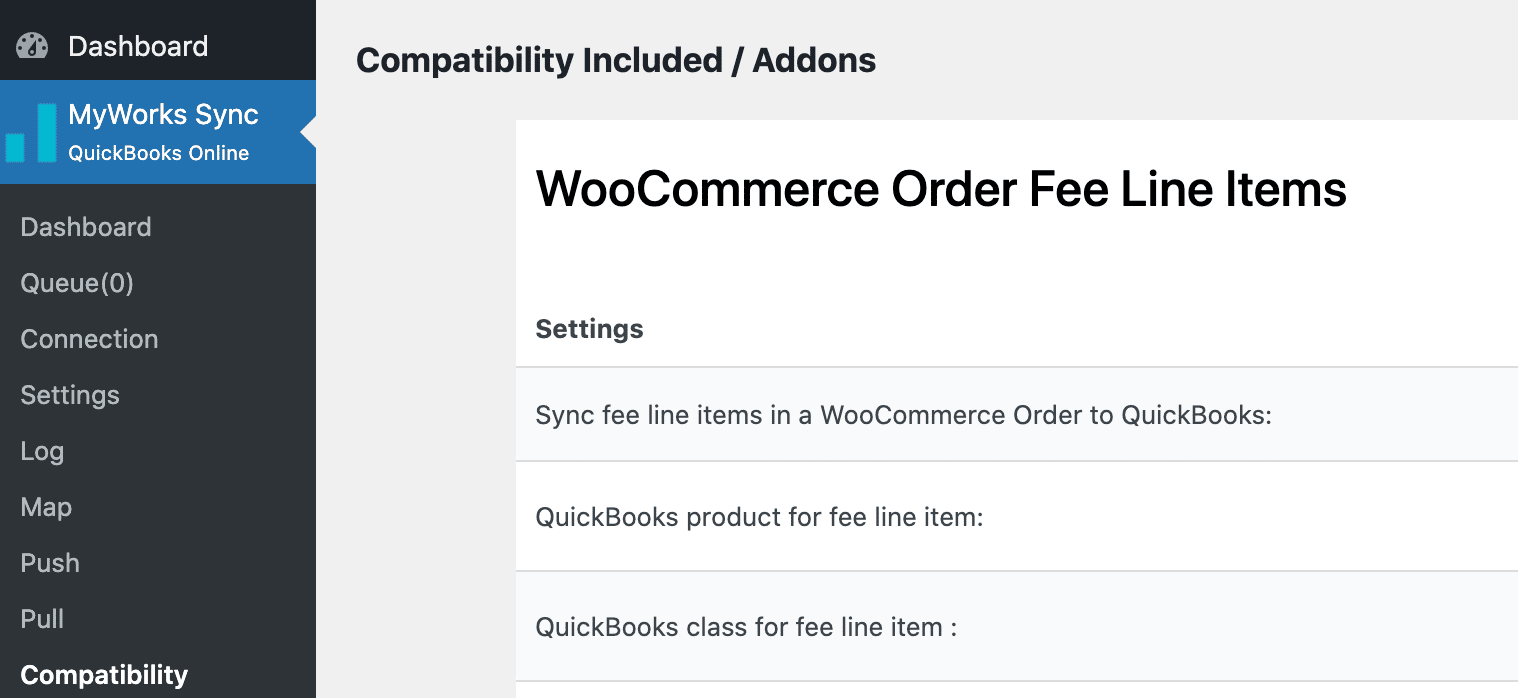
Read more about comptibility and our full list of 3rd party extension support here.
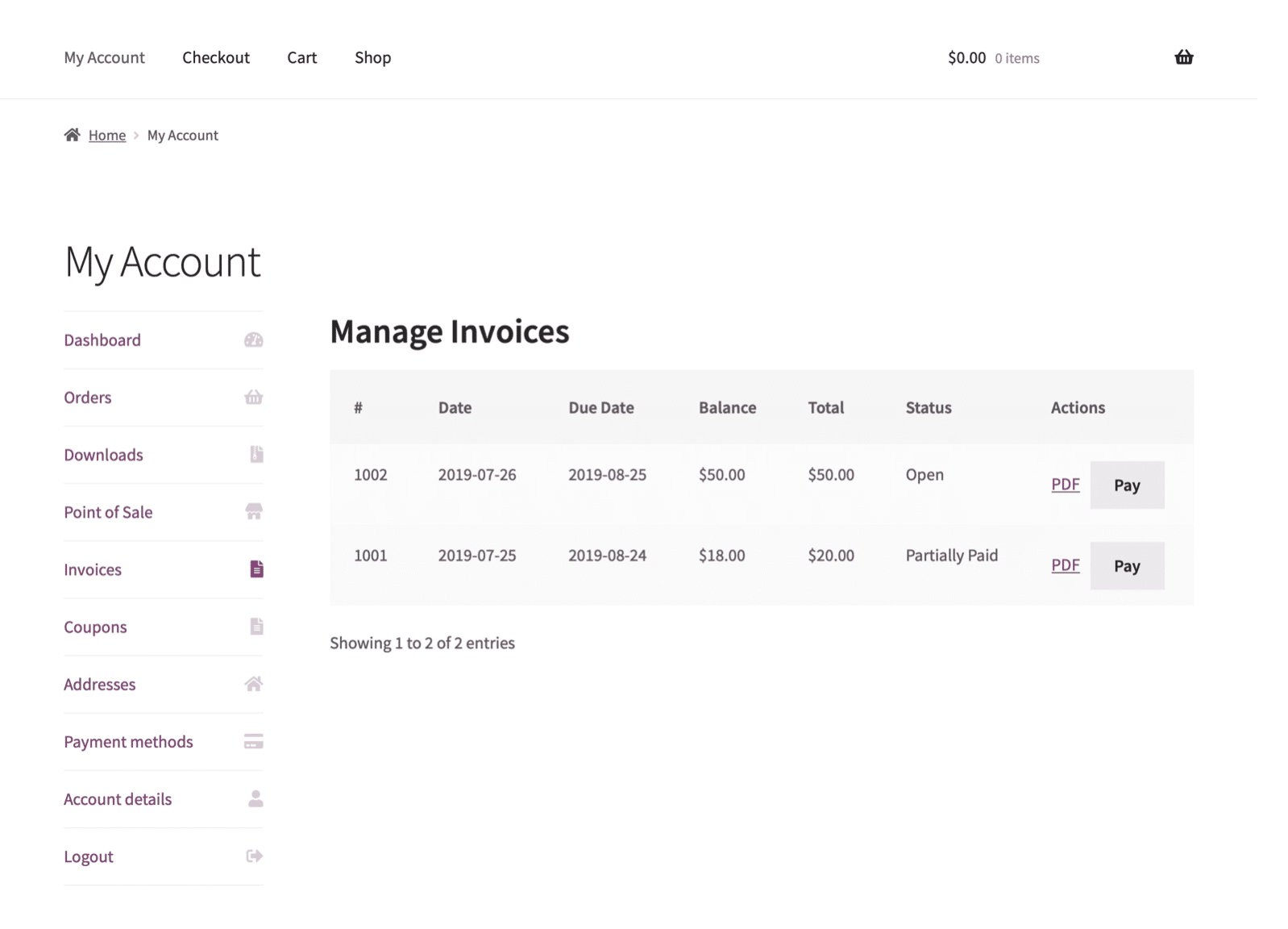
MyWorks Sync lets you display QuickBooks Online invoices in the WooCommerce client area.
If you create an invoice for a customer in QuickBooks Online, the customer can then view the invoice from within their client account in WooCommerce. That means that they can log in on your website and view the invoice that you created in QuickBooks. They may then also click to pay through QuickBooks!
MyWorks supports syncing custom fields between WooCommerce and QuickBooks. Our flexible sync options give you the ability to select the QuickBooks field destination for any custom field in WooCommerce.
MyWorks gives you full control over mapping your WooCommerce and QuickBooks data. We only provide an auto-mapping feature to save time by auto-mapping products with the same name or SKU.
You can change the mappings at any time, and names/SKUs don’t have to match if you opt for manual mapping.
MyWorks provides an auto-mapping feature to save time by auto-mapping products with the same name or SKU.
MyWorks Sync can sync transaction fees to QuickBooks (if recorded in the WooCommerce order). This means you won’t have to manually account for those fees! We also let you assign an expense account or vendor for the transaction fees, with different settings for each payment processor.
Yes! MyWorks gives you the option to sync refunds to QuickBooks when the refunds are processed through WooCommerce.

MyWorks has full support for payment processor batching. Simply configure your payment sync settings to match the interval and cutoff time your payment processor uses, and we will sync the data correctly. MyWorks will record your individual payments in a holding account, or “undeposited funds” account, and then deposit the lump sum in your bank account after the batch cut off time.

Yes, our sync fully supports simple products, variations, bundles and composite products in WooCommerce!
You can easily mark an invoice as paid either in WooCommerce or QuickBooks and it will sync to the other platform. Easily sync some orders as paid, and others as open/unpaid.
Not at all! You can choose what past WooCommerce orders you want to sync to QuickBooks; Either one by one, set a time period, or order history from when to sync. MyWorks will automatically sync only new data for you.
Absolutely! MyWorks can sync products, inventory levels, pricing, and payments from QuickBooks to WooCommerce! See our support for specific data by QuickBooks platform.
There is! MyWorks shows a live sync status badge right next to your WooCommerce orders and products, so it’s easily to tell at a glance what is synced.
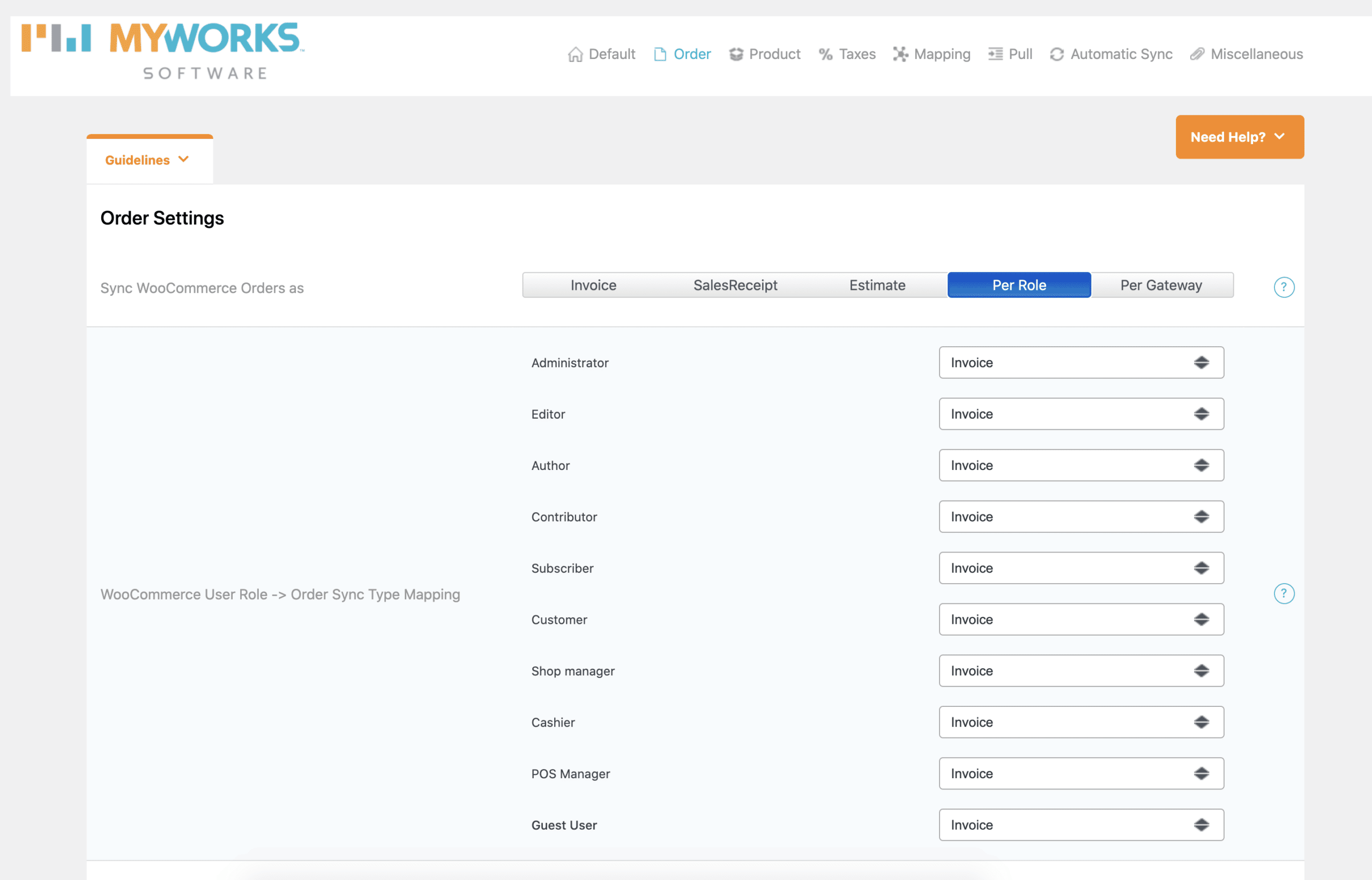
MyWorks provides extensive settings to customize the sync between WooCommerce and QuickBooks. The image below is just one section from within our order sync settings. We provide advanced sync settings in every category, so you can completely customize the sync to fit your workflows.
MyWorks Sync for QuickBooks Online offers the option to sync payment updates from QuickBooks to WooCommerce. So, if you receive a payment in QuickBooks, you can automatically sync the payment and update WooCommerce.
If you use a shipment tracking extension for WooCommerce, MyWorks can sync the tracking number to QuickBooks!
Aside from invoices and sales receipts, you can also sync estimates to QuickBooks Online.
When syncing to QuickBooks Desktop, you can also opt for Sales Orders.
MyWorks Sync supports connections to QuickBooks Desktop and Point of Sale.
If you would prefer to sync all orders to one QuickBooks customer instead of individual customers, you can! MyWorks Sync lets you select the customer to sync orders to, and also lets you exclude certain customer roles in order to sync a segment of customers orders to an individual customer.
This feature is great for distinguishing between wholesale and retail customers.
MyWorks syncs inventory changes in both directions, sales/orders are not required.
MyWorks lets you sync orders to different QuickBooks customers based on the payment method they used to pay or the user/customer type assigned to them in WooCommerce.
MyWorks for QuickBooks Online lets you select your sync interval – every 5, 10, 30 or 60 minutes.
MyWorks for QuickBooks Desktop and POS can sync at any interval you would like.

Even better! We offer a free forever plan for QuickBooks Online and Xero integrations. For QuickBooks Desktop sync, we offer a 14-day free trial. See our Pricing page for all the details.
Of course! Our stellar 24/7 Customer Support is included with all MyWorks plans. And, a 1-on-1 coaching call is included in our paid plans – where our expert team can help answer questions and provide guidance!
You can connect Shopify and QuickBooks using an integration. MyWorks offers an easy syncing solution for Shopify and QuickBooks Online or Desktop. By connecting the two platforms with MyWorks, your e-commerce and accounting data will always be in sync.
Setup typically takes 30 minutes or less. Install the MyWorks app from the Shopify App Store, connect your QuickBooks account (Online or Desktop) through the setup wizard, then configure your settings — chart of accounts mappings, payment methods, tax rates, and how you want orders to sync (individual orders, daily summaries, or a mix).
Initial onboarding calls with our support team are included on all paid plans at no extra cost, and we’re happy to walk you through the setup live. Just book a session through your dashboard once you’re connected.
Yes. You can connect a Shopify development store to a QuickBooks Online sandbox account for full end-to-end testing without touching any live data. Sandbox mode needs to be enabled on your MyWorks account — reach out to support if you don’t see the option in Settings.
Alternatively, you can test against your live QuickBooks Online account by syncing a limited range of orders first (e.g. the last 7 days only) and reviewing how they appear before opening up full historical syncing. The development store + sandbox combination is what we recommend for larger merchants and agencies who want full isolation during evaluation.
To integrate Shopify with QuickBooks Desktop, use a reliable connector like MyWorks. Install the app, connect your Shopify store and QuickBooks Desktop company file, and map your customers, products, taxes, and payment accounts. MyWorks then automatically syncs orders, inventory, and financial data between Shopify and QuickBooks Desktop in real time. This eliminates manual data entry and keeps your books accurate. Detailed setup guides and support are available to help you configure the sync based on your business needs.
MyWorks lets you select your sync interval – every 5, 10, 30 or 60 minutes.
If you don’t want your data to sync in real-time, you can easily turn the sync on or off in your Settings. The real-time sync can also be adjusted by data type.
Use an integration tool like MyWorks to connect Shopify with QuickBooks. Install the MyWorks app from the Shopify app store and link your Shopify and QuickBooks accounts. Then, configure how and when you’d like your data to sync. Once setup is complete, all new sales data will sync automatically, saving you time and keeping your books accurate without manual entry.
When you sync Shopify with QuickBooks using MyWorks, orders, customers, products, taxes, shipping, and payments flow automatically between platforms. You have full control over what data is shared between platforms, how it is mapped and how often it syncs. Each Shopify order updates customer records and transaction data in QuickBooks, saving hours of manual entry. Inventory stays updated in real time, reducing errors and keeping your books accurate. MyWorks makes managing Shopify sales in QuickBooks reliable and straightforward.
It depends on your business model. Sales Receipts work best for retail/DTC orders paid at checkout — they keep your books and deposits in sync. Invoices are better for wholesale or B2B customers who pay later (Net 30, etc.), since they track outstanding balances. Daily Summaries consolidate all of a day’s sales into a single QuickBooks entry — ideal for high-volume DTC stores that don’t need order-by-order detail.
MyWorks also supports Hybrid Sync (available on Scale and Soar plans), which lets you mix transaction types using Shopify order tags — for example, syncing B2C orders as daily summaries while posting B2B orders individually as invoices. MyWorks is currently the only Shopify integration that supports all these sync modes within a single connection.
In MyWorks Sync, navigate to Settings → Payment Methods to map each Shopify payment method to the appropriate QuickBooks account. Shopify Payments should typically map to a clearing account, not a real bank account — this lets MyWorks record payouts as separate deposits to your actual bank account, so your QuickBooks data matches what you see in both Shopify and your bank statement.
One thing to note: newly created manual payment methods in Shopify (like cash or check) only appear in MyWorks mapping settings once at least one order has been paid using that method and synced. If you’ve just added a payment method and don’t see it yet, sync a test order through first.
MyWorks reads the tax data from each Shopify order and syncs it to QuickBooks based on your tax mapping settings (Sync → Map → Tax Rates). You can either map specific Shopify tax rates to QuickBooks tax codes, or enable “Sync tax as a separate line item” to record tax as its own line on the QuickBooks transaction — useful when QuickBooks tax codes don’t line up cleanly with your Shopify configuration.
Tax overrides are also supported, but rate names must match exactly (case-sensitive) for overrides to apply. For multi-jurisdictional setups — US multi-state sales tax, EU VAT, Canadian GST/PST, or international combinations — MyWorks handles tax line by line based on what Shopify recorded at checkout.
MyWorks syncs inventory in both directions — Shopify to QuickBooks, or QuickBooks to Shopify — depending on which platform you treat as your source of truth. You configure the direction, frequency, and which products are included under Sync → Settings → Inventory. The sync handles simple products, variations, and bundles.
One thing to know: Shopify rejects negative inventory quantities, so if QuickBooks has a product with a negative stock level, the sync to Shopify will fail with an INVALID_QUANTITY_NEGATIVE error until that’s corrected. Inventory changes don’t have to be triggered by sales either — manual stock adjustments in either platform sync the same way.
MyWorks syncs Shopify Payments payouts to QuickBooks as journal entries that move money from your Shopify Payments clearing account to your real bank account, net of Shopify Payments fees. This matches the actual flow of money — Shopify holds the funds, deducts fees, and then transfers the net payout to your bank.
To reconcile cleanly, ensure your QuickBooks bank account name exactly matches the one mapped in MyWorks (small differences like a “-1” suffix can cause the payout to post to the wrong account, which breaks bank-feed matching). Payouts in non-USD currencies and pending refunds can occasionally hold up automatic syncing — if a specific payout isn’t appearing, reach out to support with the payout ID.
MyWorks syncs refunds to QuickBooks when they’re processed in Shopify — refund sync is available on the Grow plan and above. Both full and partial refunds are supported, and they post as credit memos or refund receipts in QuickBooks depending on how the original order was synced (Sales Receipt vs Invoice).
One nuance: refunds that are in “pending” status in Shopify — which happens with some payment gateways like Shop Pay or PayPal — only sync once they finalize. If you’ve issued a refund and it hasn’t synced after a few hours, check the refund status in Shopify before troubleshooting further.
QuickBooks requires product names to be unique — specifically, the first 50 characters must be unique. If two Shopify products share the same first 50 characters, the second one will create a duplicate or trigger QuickBooks error 6240 instead of syncing cleanly.
Two ways to fix this: (1) Map existing QuickBooks products to your Shopify products in Sync → Map → Products before pushing — that way the sync updates the existing item rather than creating a new one; (2) Rename Shopify products so the first 50 characters are unique, then push again. The same rule applies to variations — they sync against the variant name and SKU.
The QuickBooks Web Connector is the local component that moves data between MyWorks and QuickBooks Desktop. Most Web Connector issues come down to one of three things:
1. QuickBooks Desktop is running as a different Windows user than the Web Connector — make sure both run as the same user with admin permissions.
2. Multiple QuickBooks instances are open — close all of them, then reopen QuickBooks once.
3. The .QWC connection file is outdated after a QuickBooks company file rename or move — download a fresh .QWC from your MyWorks Sync dashboard and re-add it.
For QBWC 1039 errors specifically, the most common fix is closing QuickBooks fully and reopening it to clear orphaned processes. If the queue isn’t clearing or you’re seeing timeout errors, open a support thread with your license key so the team can investigate.
Shopify doesn’t fully support multi-level assemblies or bundled products natively like QuickBooks Desktop does, although there’s quite a few apps that make this possible in Shopify. Once a bundle has been created in Shopify; apps like MyWorks can help keep inventory levels in sync between QuickBooks and Shopify, but complex assemblies may require additional setup or inventory management tools. Always check that your products and stock levels map correctly to avoid overselling or errors.
In QuickBooks, Shopify fees (like transaction or processing fees) are normally recorded as expenses inside an expense account, named “Shopify Fees” or “Merchant Fees.” This will then correctly show as its own expense line on a Profit and Loss statement. When setting up a sync with QuickBooks, ensure your integration correctly maps these fees when handling Shopify payouts. This keeps your income accurate, accounts for expenses properly, and helps you track your net sales and profit.
Ready to free up time to grow your business?
Try MyWorks and experience the power of accounting automation for yourself. More efficiency, more time to grow your business.