



Are you looking to automate WooCommerce sales data transfer and simplify your store’s bookkeeping? Managing online orders, inventory, and finances is much easier with automatic syncing of orders, customers, and products. This step-by-step guide explains how to set up QuickBooks Online automated data integration for efficient ecommerce bookkeeping automation with WooCommerce, helping you reduce manual work through automated QuickBooks sync and improve your financial accuracy.
Why Automate Sales Data Transfer from WooCommerce to QuickBooks?
Implementing real-time accounting automation through WooCommerce and QuickBooks means you can automate WooCommerce sales data transfer to save hours of entry and minimize errors. The automatic syncing of orders, customers, and products removes the burden of repetitive, manual updates, while QuickBooks Online’s automated data integration powers streamlined tax compliance and fast reporting. This is the heart of ecommerce bookkeeping automation for WooCommerce, letting you reduce manual work with automated QuickBooks sync and focus on growing your business.
- Automate WooCommerce accounting – Eliminate hours of manual bookkeeping and reduce human error
- Real-time financial insights – Make better business decisions with up-to-date financial reporting
- Accurate inventory tracking – Keep stock levels consistent when you sync inventory and orders
- Streamlined tax compliance – Ensure sales tax is properly tracked and reported
- Time savings – Focus on growing your online store instead of reconciling spreadsheets
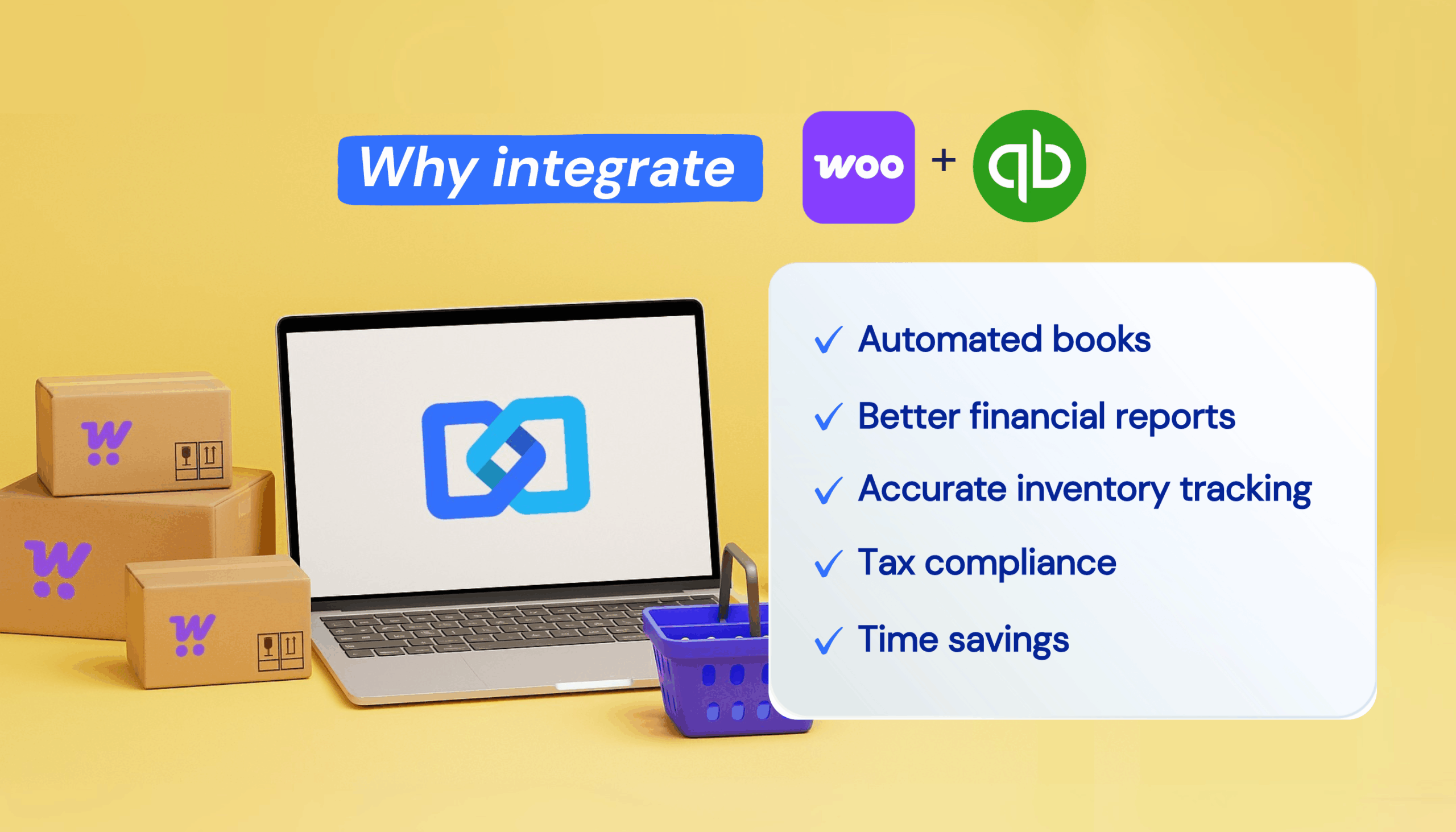
When these platforms work together through ecommerce bookkeeping automation, you’ll spend less time on administrative tasks and gain more accurate financial visibility into your operation.
Selecting the Best Automation Tool for WooCommerce and QuickBooks Data Transfer Automation
When evaluating plugins, look for real-time accounting automation features and direct support for automating WooCommerce sales data transfer. Ensure your choice provides automatic syncing of orders, customers, and products via QuickBooks Online automated data integration. Prioritizing tools built for ecommerce bookkeeping automation for WooCommerce helps you reduce manual work with automated QuickBooks sync and ensures consistent, accurate books.
Not all WooCommerce accounting software solutions are created equal. When evaluating options for syncing WooCommerce with QuickBooks Online, look for these critical features:
- Two-way synchronization – Changes in either system should reflect in the other
- Real-time data transfer – Minimize delays between transactions and bookkeeping
- Customizable field mapping – Control how data flows between platforms
- Support for refunds and partial payments – Handle all transaction types accurately
- Product and inventory sync – Maintain consistent stock levels across platforms
- Customer data synchronization – Keep customer records updated in both systems
- Reliable support – Access to help when technical issues arise
The right solution will align with your specific business workflows while providing the automation needed to sync sales data to QuickBooks efficiently.
To fully automate WooCommerce sales data transfer, begin by selecting an integration that enables automatic syncing of orders, customers, and products for QuickBooks Online automated data integration. This is the foundation for true ecommerce bookkeeping automation for WooCommerce and the most effective way to reduce manual work with automated QuickBooks sync.
Step 1: Choose a WooCommerce to QuickBooks Data Automation Solution
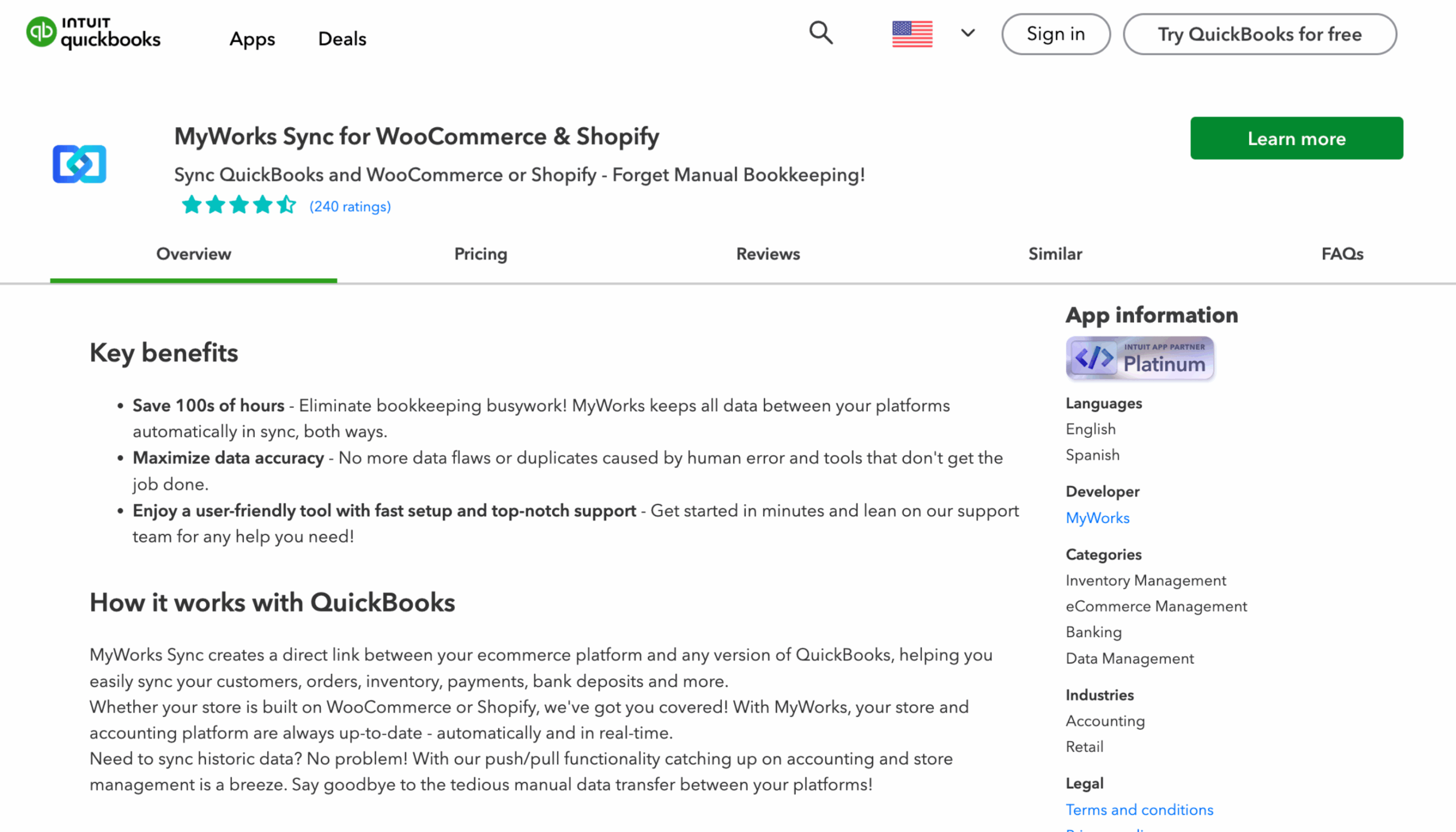
While there are multiple integrations available for WooCommerce and QuickBooks Online, many online sellers trust MyWorks with automating their accounting. As a dedicated WooCommerce and QuickBooks integration, MyWorks provides:
- Automatic syncing of orders, customers, products, and payments
- Native WooCommerce integration allowing you to manage the sync from your store’s backend
- Custom field mapping to ensure data appears exactly where you need it
- Flexible configuration options for different business models
- Regular updates to maintain compatibility with both platforms
- Top-rated support from ecommerce accounting specialists
Before installation, ensure your WooCommerce store meets the minimum requirements and your QuickBooks Online account is properly configured for integration.
Step 2: Connect and Authorize Automated Data Transfer
Once you’ve selected your integration solution, it’s time to connect your platforms:
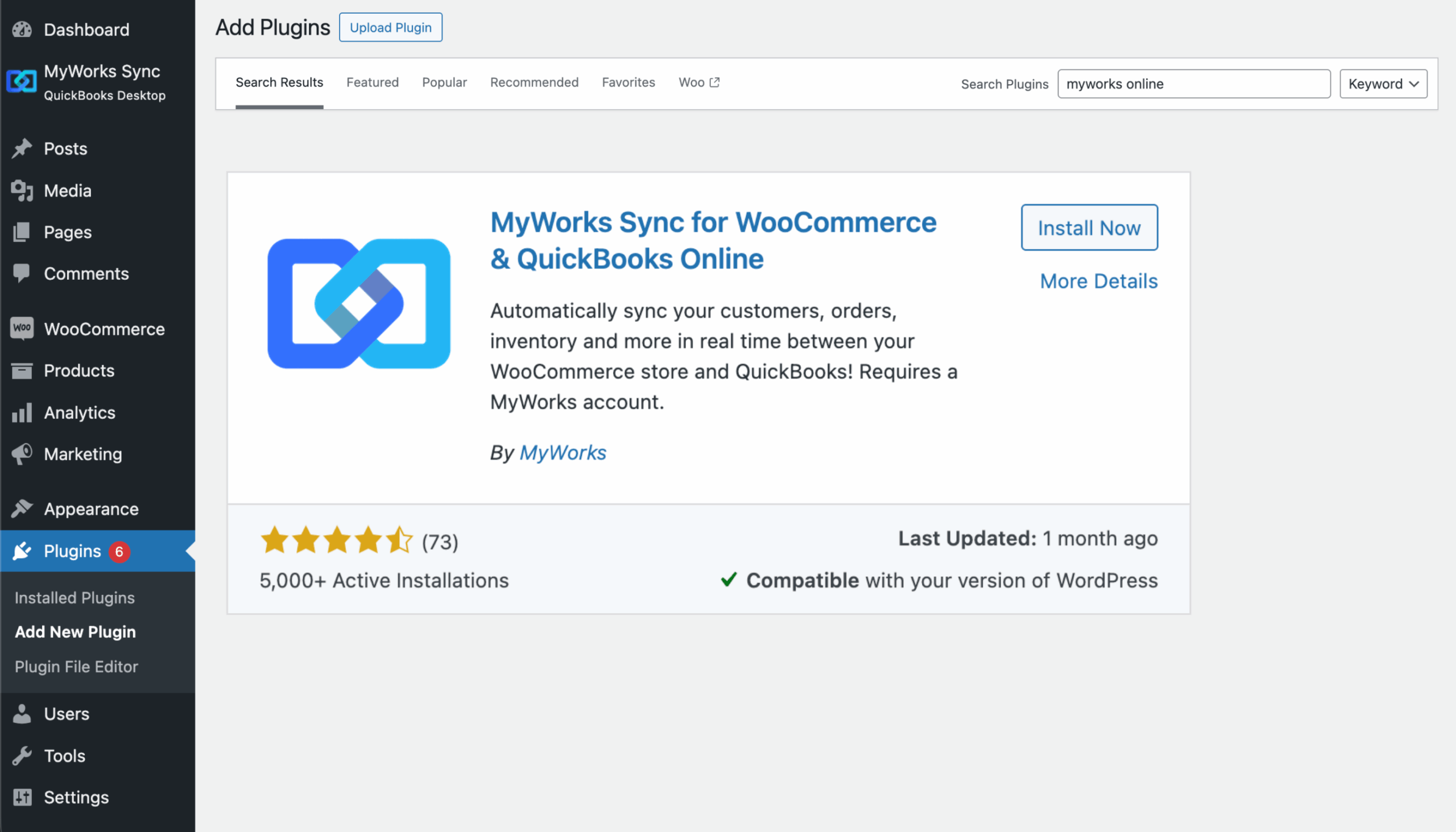
- Install the MyWorks Helper plugin on your WordPress site
- Navigate to the plugin settings in your WooCommerce dashboard
- Click “Connect to QuickBooks” and authorize the connection
- Follow the authentication prompts to grant API access permissions
- Verify the connection is active before proceeding
This establishes the secure connection between platforms, allowing them to communicate and share data according to your settings, creating the foundation for automated WooCommerce accounting.
Step 3: Configure Your Sync Settings
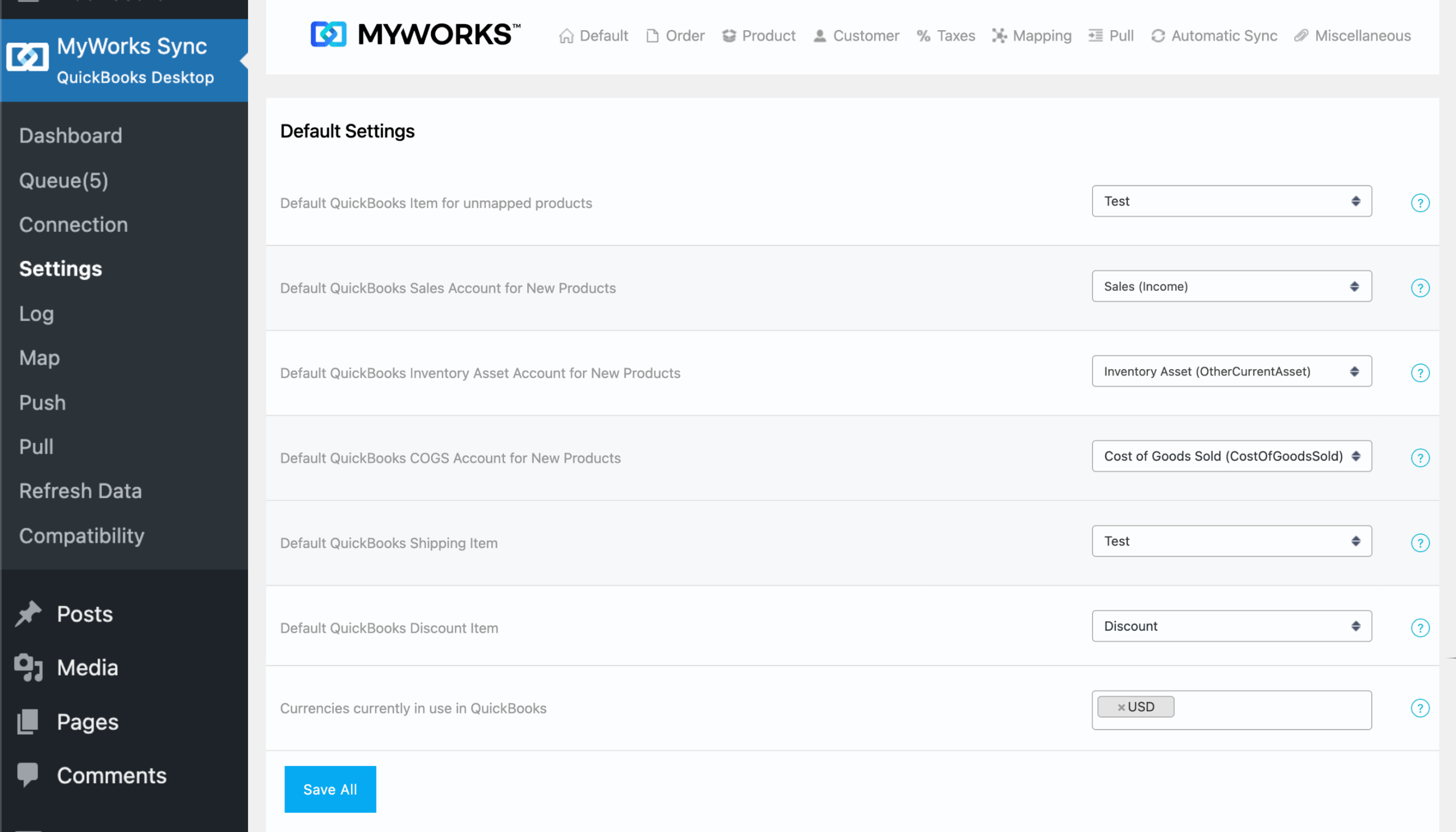
Once your connection is active, configure field mapping and sync frequency for automatic syncing of orders, customers, and products. These settings ensure QuickBooks Online automated data integration reflects each sale in real time for robust ecommerce bookkeeping automation for WooCommerce. Use these tools to reduce manual work with automated QuickBooks sync and maintain accurate records.
Proper configuration is crucial for a successful QuickBooks sync for WooCommerce. Take time to:
- Map your data fields – Connect WooCommerce products, customers, and orders to their QuickBooks counterparts
- Set up tax mapping – Ensure sales tax is properly tracked and reported
- Configure payment methods – Determine how different payment gateways appear in QuickBooks
- Customize sync frequency – Control how often data transfers between systems
- Set up product sync rules – Decide which product details transfer to QuickBooks
Pay special attention to inventory settings if you’re planning to sync inventory and orders, and ensure your chart of accounts is properly mapped to maintain accurate financial records through your ecommerce bookkeeping automation.
Step 4: Run and Monitor Your Automated Data Transfer
With your settings configured, it’s time to sync sales data to QuickBooks:
- Start with a small batch test sync if possible
- Monitor the initial sync process to catch any mapping issues
- Verify sample transactions appear correctly in QuickBooks Online
- Check for any error messages or warnings in the sync log
- Make adjustments to your configuration as needed
After confirming everything is working correctly, you can rely on the automated WooCommerce QuickBooks integration to keep your systems in harmony going forward.
Frequently Asked Questions (FAQs) about Automating WooCommerce and QuickBooks
What data does a WooCommerce QuickBooks sync transfer?
A complete integration solution transfers orders, customers, products, payments, refunds, taxes, shipping costs, and fees. MyWorks allows you to customize exactly which elements sync between systems based on your business needs.
How often does the sync run?
The sync options would depend on your integration solution. For example, MyWorks offers real-time syncing for immediate data transfer, scheduled syncs at regular intervals, and manual syncing when you prefer control over timing. The frequency depends on your transaction volume and reporting needs.
Is the WooCommerce to QuickBooks sync secure?
This will depend on the method you use to sync your data. MyWorks integrates WooCommerce and QuickBooks through secure API connections. Your data is encrypted during transfer, and no sensitive customer payment information is exposed during synchronization.
Can I sync past orders?
Yes, some integration tools allow you to sync historical data. If using MyWorks, you can choose a date range or specific orders to include in your initial synchronization to establish your complete financial history in QuickBooks.
How can I automate the transfer of sales data from WooCommerce to QuickBooks?
You can automate sales data transfer using plugins or integrations like MyWorks. These automatically sync orders, inventory, customer information, and payments between WooCommerce and QuickBooks Online in real-time.
What are the benefits of automated WooCommerce and QuickBooks integration?
Automated integration reduces manual entry, minimizes errors, improves financial reporting, and saves accounting time for store owners.
What’s the difference between QuickBooks Online and Desktop sync?
QuickBooks Online uses API connections for direct, cloud-based syncing, while Desktop versions may require additional middleware or desktop connectors. Online integration typically offers more automation and real-time capabilities than Desktop solutions. These are just some of the differences between QuickBooks Online and QuickBooks Desktop for ecommerce business. The right QuickBooks version for you depends on your business setup and requirements.
By implementing a robust integration between WooCommerce and QuickBooks Online, you’ll eliminate tedious manual data entry, reduce errors, and gain valuable insights into your business finances. This automated workflow creates a seamless accounting system that scales with your business growth while ensuring accurate financial reporting.
Ready to connect your WooCommerce store with QuickBooks Online?
By choosing to automate WooCommerce sales data transfer and set up automatic syncing of orders, customers, and products with QuickBooks Online automated data integration, your business gets the benefit of continuous, effortless ecommerce bookkeeping automation for WooCommerce. Ultimately, this approach allows you to reduce manual work with automated QuickBooks sync, saving time and enhancing accuracy as your store grows.
Book a personalized demo with us to see MyWorks in action, or get started today with our free forever plan and transform your ecommerce accounting workflow.