




Most Shopify sellers don’t dread tax season because ecommerce taxes are complicated, but because their data is a mess.
Exports that don’t reconcile, spreadsheets that don’t make sense and a gap between Shopify and QuickBooks you can’t explain, and an accountant billing $150 per hour to untangle it.
This guide walks you through how to use MyWorks to automatically sync and structure your Shopify taxes inside QuickBooks, so your books stay clean, explainable, and audit-ready all year. You’ll also get a practical Shopify tax checklist to run through before your accountant ever has to ask.
TL;DR: Shopify Tax Prep at a Glance
| Shopify Taxes with MyWorks | Quick Answer |
| What “tax-ready” means | Sales, tax, fees, and refunds all reconcile across Shopify, your payment gateways, and QuickBooks or Xero, with nothing hidden inside a lump-sum revenue number. |
| The #1 mistake | Sales tax collected in Shopify gets buried inside revenue instead of its own liability account. Income looks bigger than it is, and the real tax bill stays invisible until it doesn’t. |
| How MyWorks fixes it | Every sale, tax amount, fee, refund, and payout posts into QuickBooks Online, QuickBooks Desktop, or Xero automatically, using the accounting logic your books actually need. |
| Setup time | Most stores connect in under 10 minutes through the Shopify App Store. |
| Ongoing work | A 5-minute monthly review, confirming deposits match and nothing looks off in your tax or refund accounts, is enough to keep this current all year. |
What “Tax-Ready Shopify Books” Actually Mean
Tax-ready ecommerce books aren’t just “up to date.” They’re accurate, explainable, and audit-proof. Here’s what that looks like:
- Sales totals match across systems: what Shopify reports, what your payment gateways process, and what QuickBooks records all tell the same story.
- Taxes are separated from revenue: sales tax sits in a liability account, not inside income. If tax is lumped into revenue, your income is overstated, and your liability is invisible.
- Refunds reduce both revenue and tax: refund a $100 order with $8 in sales tax? Both the revenue and the tax must decrease.
- Fees don’t distort taxable income: recording gross sales without properly tracking processing fees as expenses inflates profit and misrepresents margins.
- Payouts are reconcilable and explainable: when $4,823 hits your bank, you can show exactly where it came from: $5,000 in sales, minus $177 in fees. If your accountant asks why deposits don’t match sales, you have the answer.
- Reports run clean without cleanup: when you pull a P&L, it should be ready to send. No weekend recategorizing, hunting for missing refunds or explaining gaps.
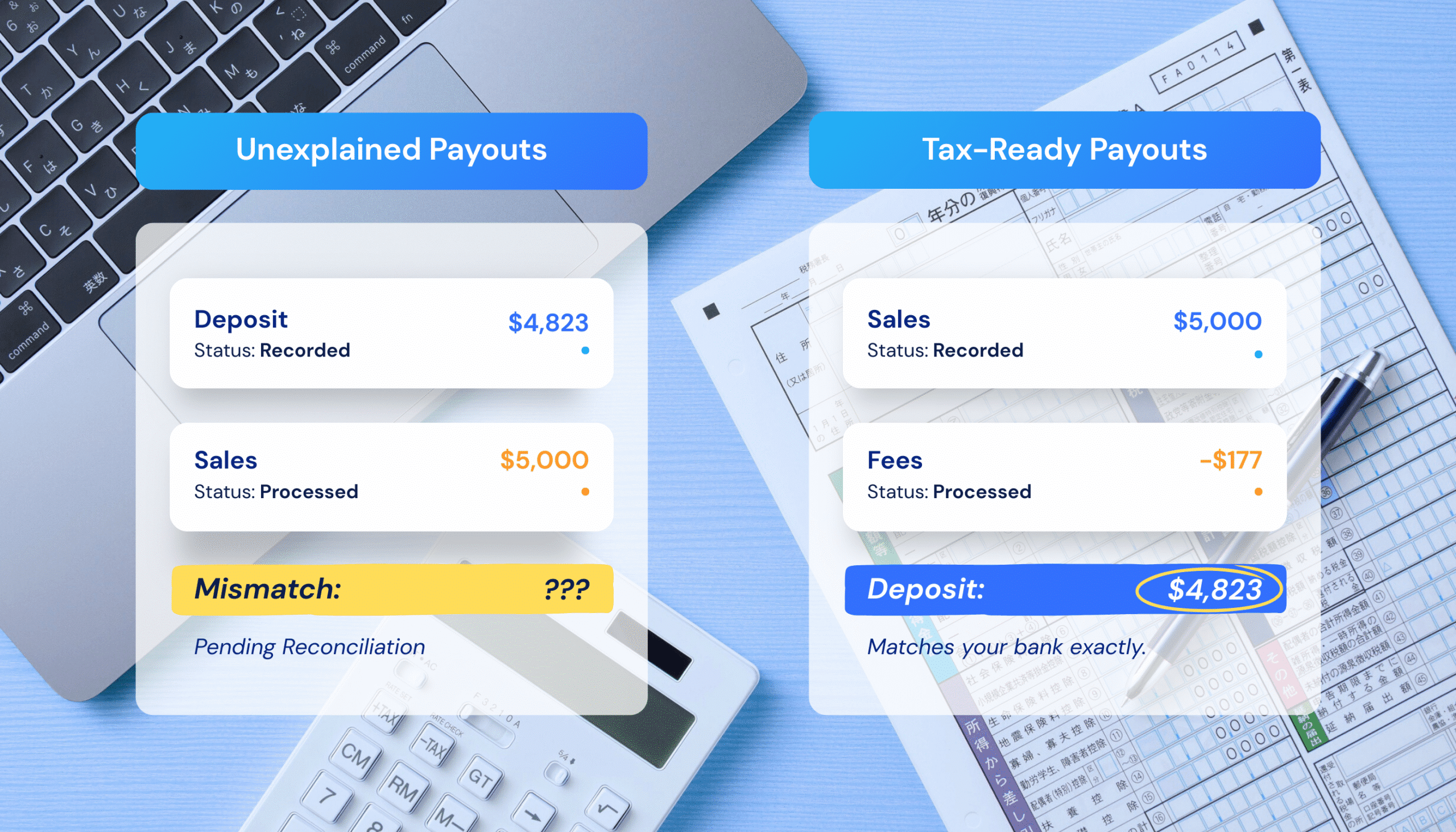
This is what “tax-ready” for Shopify means. And it’s not what most manual setups achieve.
Why Manual Shopify Tax Prep Breaks Down
Manual bookkeeping works when you’re small, but as volume grows, the cracks show fast.
1. Sales and Fees Don’t Line Up
Shopify shows gross sales. Your bank shows net deposits. The difference is fees, but those fees don’t live neatly in Shopify sales reports.
Stripe fees live in Stripe. PayPal fees live in PayPal. Pulling everything together means logging into multiple dashboards and hoping your spreadsheet math is right.
Refunds don’t follow a clear timeline either. You process a refund on Tuesday. It shows up in Friday’s payout, mixed with new sales and new fees. Matching refunds to original orders becomes forensic work.
2. Sales Tax is Easy to Collect—And Easy to Mispost
Shopify tracks what you collect. But unless you’re manually posting tax to liability accounts in QuickBooks, that money often sits inside revenue, overstating income and hiding what you owe.
3. Complexity Multiplies as You Grow
Multi-currency and multi-channel add chaos. Each currency converts at different rates on different days. Multiple stores mean multiple data streams that don’t reconcile cleanly.
4. The Risks Are Real
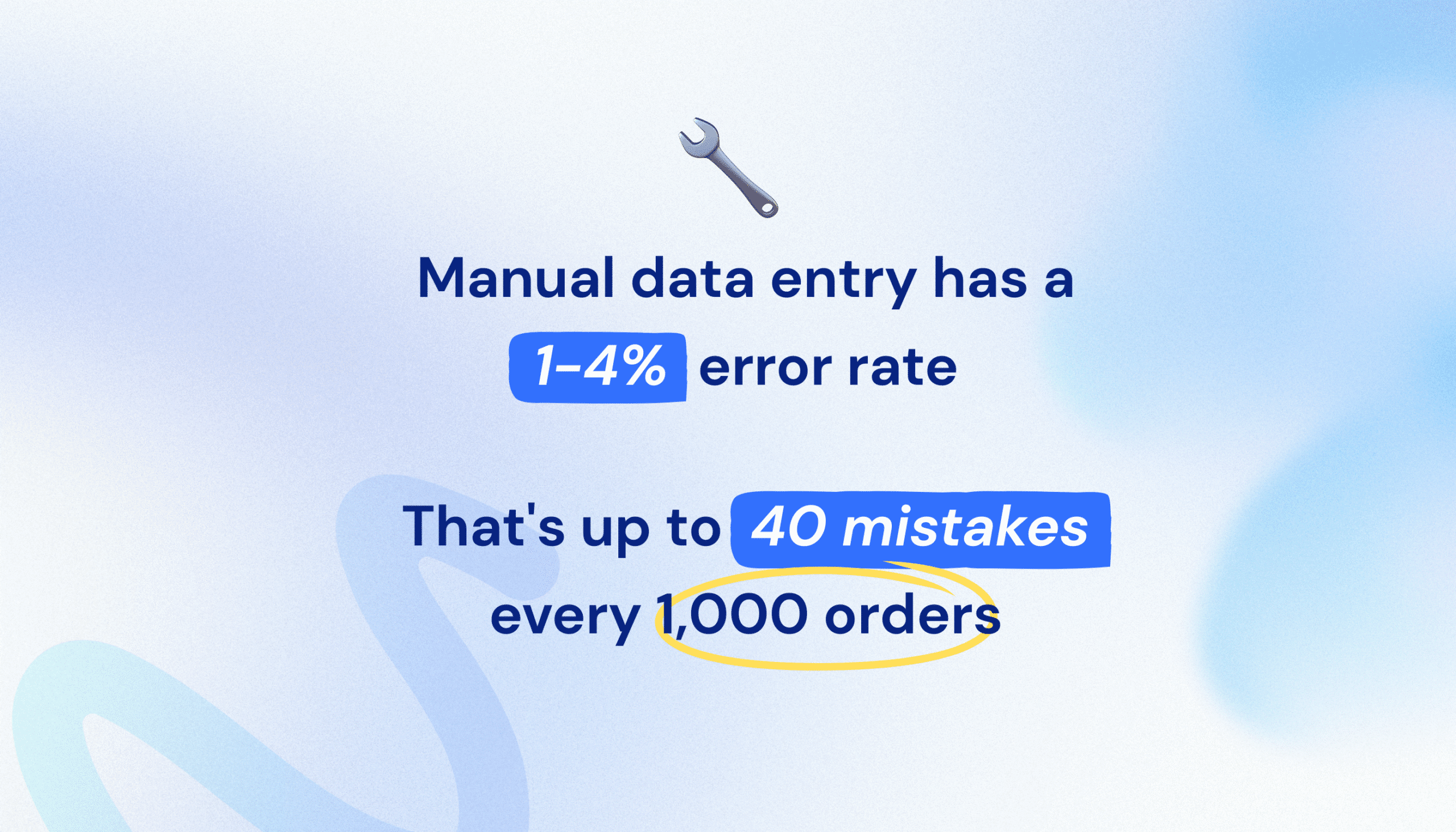
Payment processors report your transactions to the IRS via 1099-K forms. If your reported income doesn’t match, expect questions. Meanwhile, manual data entry carries a 1% to 4% error rate: 10 to 40 mistakes per 1,000 transactions.
How MyWorks Turns Shopify Data Into Tax-Ready Financials
MyWorks connects your Shopify store directly to QuickBooks Online, QuickBooks Desktop, or Xero. As a Built for Shopify app and Intuit Platinum Partner, it runs natively inside your Shopify admin.
Once configured, it automatically sends sales, tax, fees, refunds, and payouts into your accounting platform using proper accounting logic.
Here’s how to set it up.
Step 1: Connect Shopify to Your Accounting Platform
Install MyWorks from the Shopify App Store and connect your QuickBooks or Xero account. The setup wizard handles authorization, and most stores are connected in under 10 minutes.
Step 2: Map Taxes Correctly
During setup, configure how sales tax flows into QuickBooks. MyWorks maps tax collected to the appropriate liability account, keeping it separate from revenue. If you’re selling across multiple states, tax posts line by line with each transaction, broken out by jurisdiction.
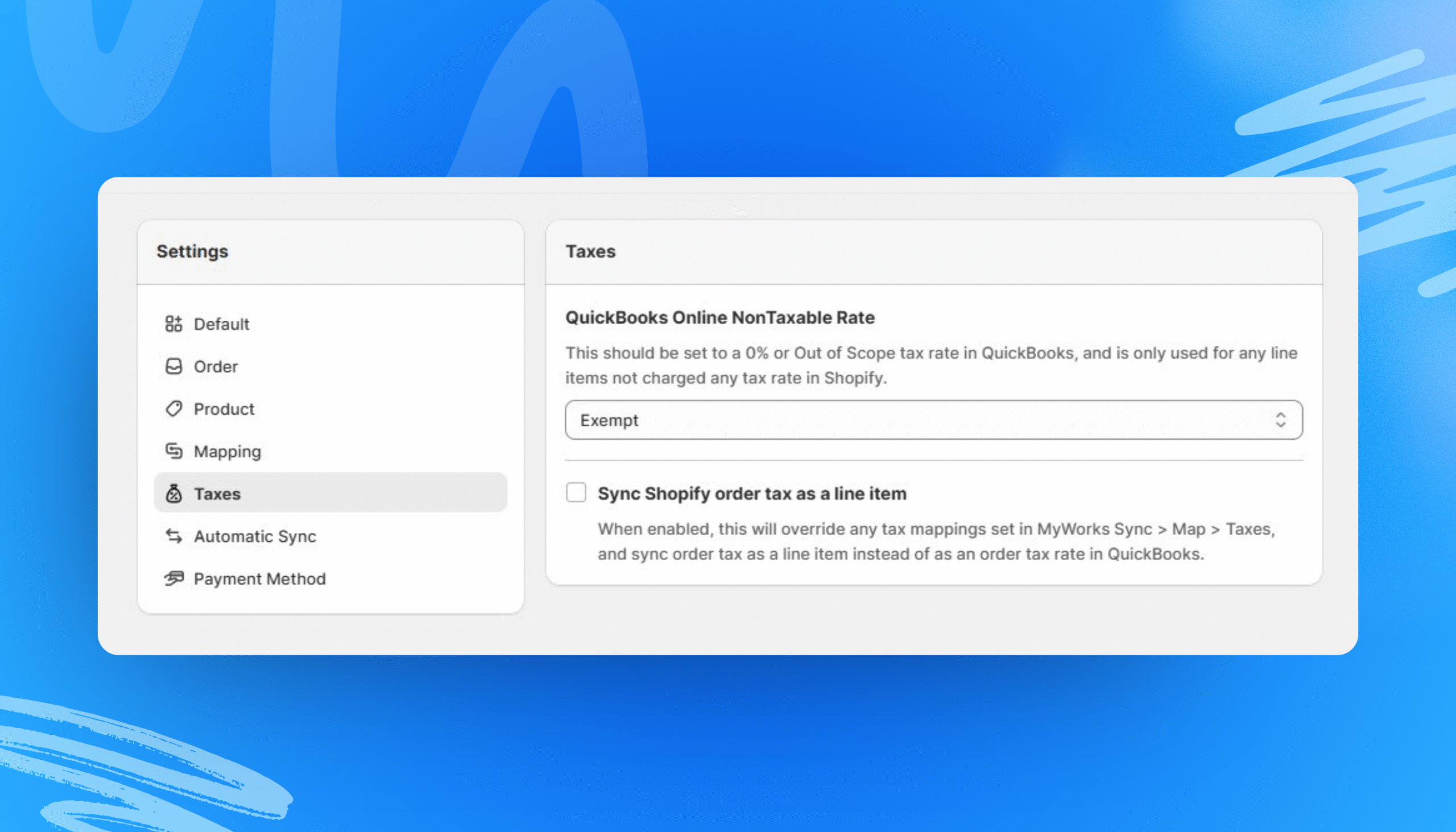
| Quick check: run a test order. Confirm the tax amount in Shopify matches exactly what appears in your QuickBooks liability account. If it does, your mapping is correct. |
Step 3: Capture Fees, Refunds, and Adjustments
During setup, choose how processing fees, refunds, and chargebacks should be recorded in QuickBooks.
- Processing fees: map Shopify Payments, PayPal, and Stripe fees to dedicated expense accounts.
- Refunds: ensure refunds adjust the original transaction, reducing both revenue and sales tax liability.
- Chargebacks: confirm disputes post correctly so revenue and fees remain accurate.
This ensures profit, tax, and payout reporting stay aligned automatically.
Step 4: Enable Batch Deposit Support for Accurate Payout Matching
During setup, enable Batch Deposit Support and choose the deposit schedule and bank account in the MyWorks Map → Payment Methods settings.
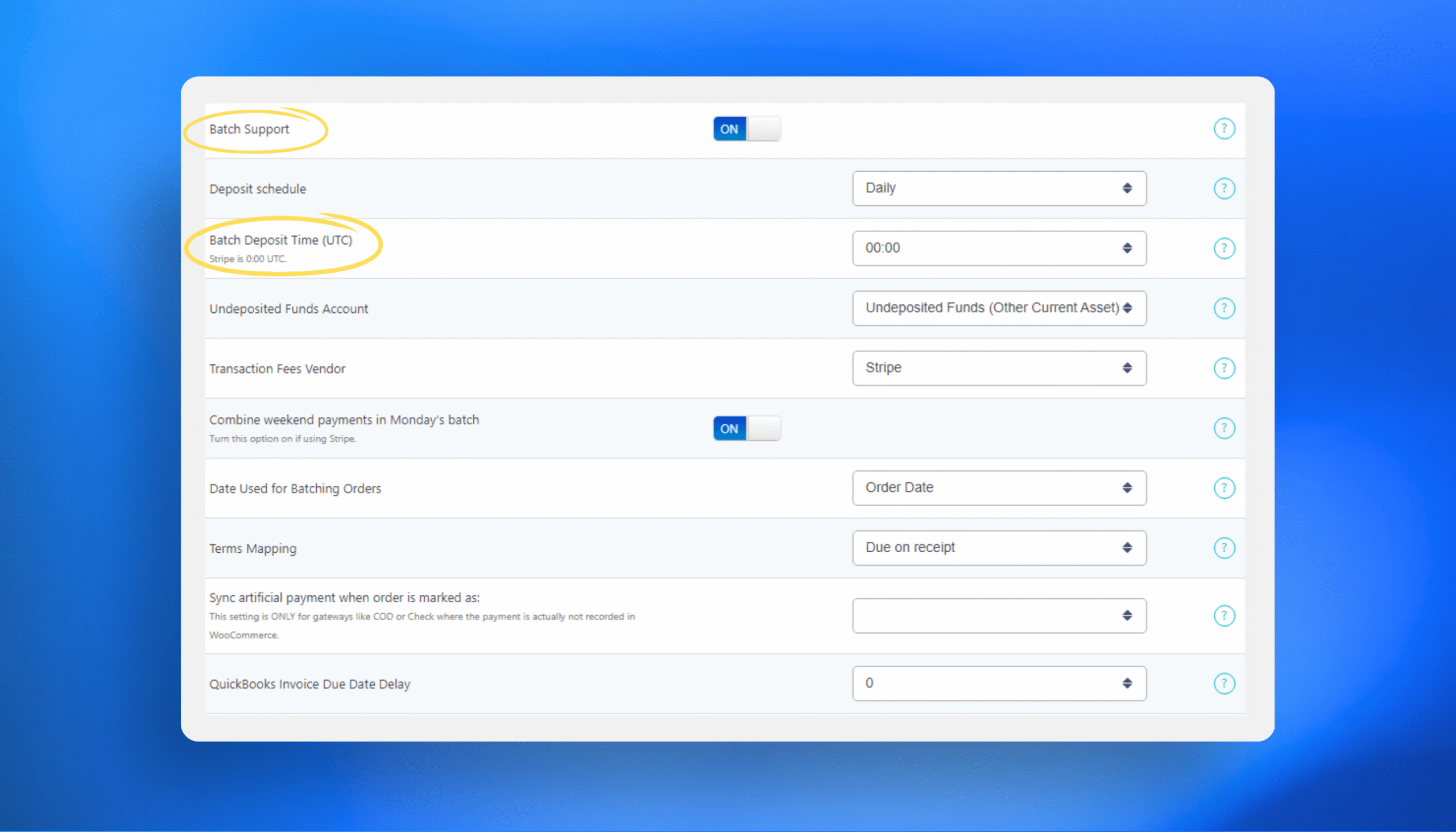
This lets MyWorks:
- Group daily payments into a single Bank Deposit in QuickBooks that matches the exact amount your payment processor sends to your bank
- Include transaction fees as a line item so the total deposit matches the real bank deposit
- Avoid manual matching of dozens or hundreds of individual orders to lumped payouts
After configuring it, compare a recent Shopify payout to the bank deposit record MyWorks created in QuickBooks. The totals should match exactly: not gross sales, but the actual deposit amount.
Step 5: Schedule a Monthly 5-Minute Review
Once your sync settings are configured, add a simple monthly check to your workflow:
- Confirm recent bank deposits match.
- Verify refunds reduced revenue and tax correctly.
- Scan income and tax liability accounts for anomalies.
When your system is configured properly, tax prep becomes a review process. That’s the difference between reacting at filing time and being prepared all year.
The Shopify Tax Compliance Checklist
If you can’t confidently check off these items, tax season will hurt. Run through this Shopify tax compliance checklist before your ecommerce accountant starts asking questions.
| Shopify Tax Checklist | ✅ |
| Orders synced: every Shopify sale has a matching entry in QuickBooks. | |
| Processing fees recorded: Shopify Payments, PayPal, and Stripe fees show as expenses. | |
| Bank deposits reconciled: deposit amounts in QuickBooks match your bank statements. | |
| Refunds recorded: customer refunds are reflected in your books, not just Shopify. | |
| Sales tax matches: tax collected in Shopify equals tax recorded in liability accounts. | |
| COGS accurate: cost of goods sold reflects what was actually sold. | |
| Income categorized: revenue is mapped to the correct accounts. | |
| 1099-K alignment: reported income matches what payment processors reported to the IRS. |

How MyWorks Handles Each Shopify Tax Checklist Item
Orders and Tax Sync
Every Shopify order posts to QuickBooks with line-item tax detail. Sales tax goes to liability accounts, not revenue.
Result: your sales tax filings align with your books.
Processing Fees
Shopify Payments, PayPal, and Stripe fees are recorded as categorized expenses. You can see exactly what each gateway costs.
Result: profit margins and deductions are accurate.
Smart Bank Deposit
Payouts post as the actual deposit amount, after fees and adjustments. When you reconcile your bank account, the numbers line up.
Result: no unexplained gaps between sales and deposits.
Refunds and Adjustments
Refunding a customer automatically adjusts the original sale and associated tax.
Result: revenue and tax liability remain correct without manual fixes.
1099-K Alignment
Because gross sales and fees are recorded separately, you can verify reported income against what payment processors submit to the IRS.
Result: no surprises at filing time.
What Tax Season Looks Like: With vs. Without Automation
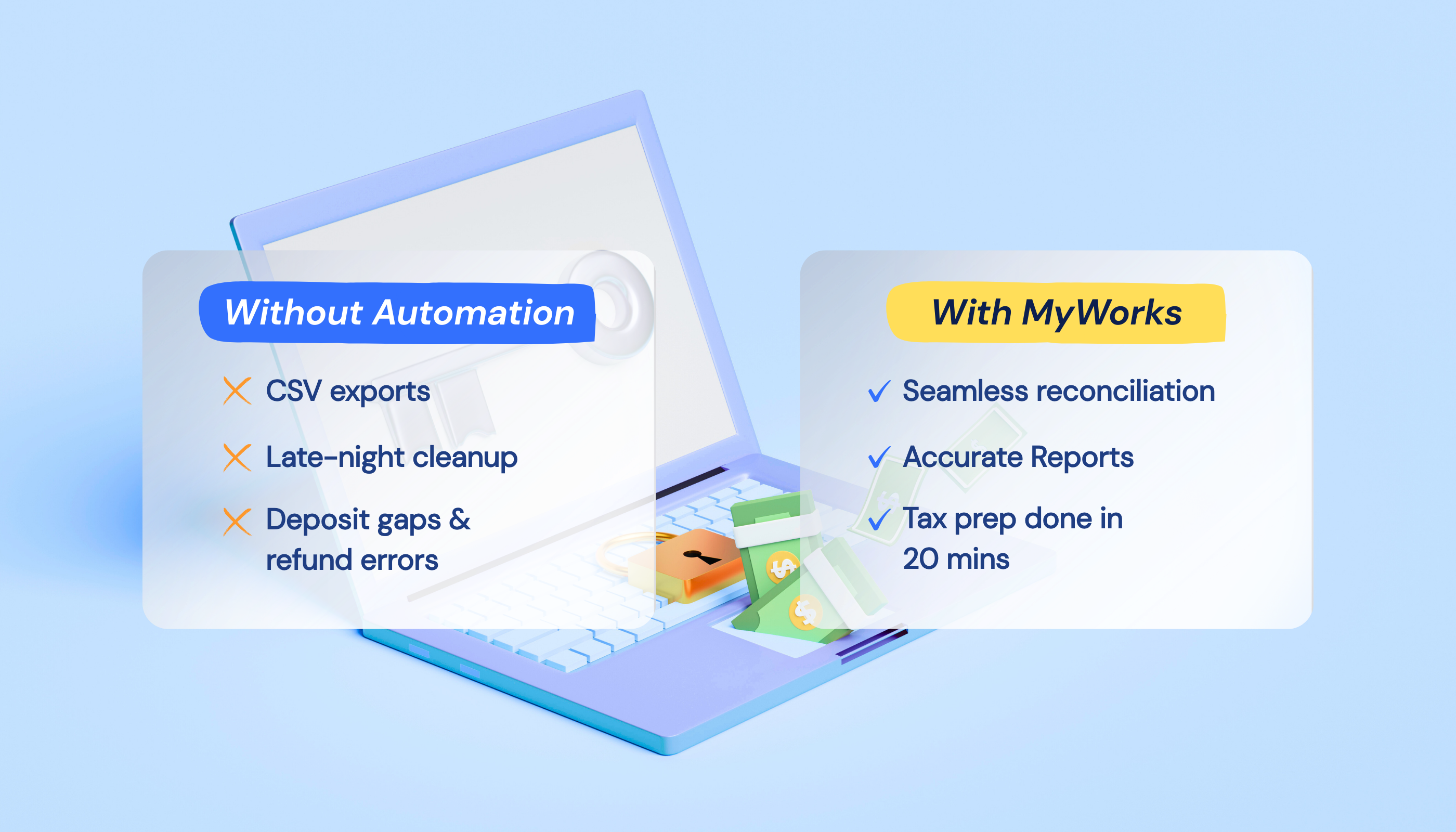
It’s March, and our accountant needs finalized books by Friday. Here’s how the scenario plays out with or without MyWorks sync.
| Tax Season Without MyWorks | Tax Season With MyWorks |
| You spend the weekend exporting CSVs, cross-referencing payout reports, and trying to explain why sales and deposits are $3,000 apart. At 11 PM, you realize refunds never made it into QuickBooks. | You run a P&L, confirm bank reconciliation is current, and export the reports. Total time: 20 minutes. |
Tax season doesn’t have to be a recovery project. When your data flows correctly all year, filing becomes routine, not reactive.
Make This Your Last Stressful Tax Season with MyWorks
Your Shopify taxes are only as accurate as the data behind them. Manual exports and year-end cleanup create errors and waste hours you won’t get back.
MyWorks structures your Shopify data correctly from day one: sales, tax liability, fees, refunds, payouts. Your books stay accurate and explainable all year.
Book a demo and see how simple tax season becomes when your accounting is built to reconcile.
FAQs About Preparing for Shopify Taxes
1. Does Shopify Provide Tax Documents for Filing?
Shopify provides sales reports and payout summaries, but it does not generate the official documents you file for Shopify taxes. Reports like your Profit & Loss and Balance Sheet come from your accounting software, not Shopify. Shopify calculates and tracks Shopify sales tax, but your final ecommerce tax reports depend on how accurately your data is recorded in QuickBooks.
2. What Records Do I Need to Keep for Shopify Taxes?
For accurate Shopify taxes, you need:
- Gross sales.
- Refunds and fees.
- Cost of goods sold.
- Sales tax collected by state.
- Reconciled bank deposits.
Think of this as your internal Shopify tax checklist. If any piece is missing, filing becomes complicated.
3. How Do I Reconcile Shopify Payouts with My Bank?
Shopify deducts fees and refunds before depositing funds, so payouts rarely match gross sales. To prepare for Shopify taxes, record gross sales and fees separately and match deposits to the actual payout amount. Structured ecommerce accounting syncs make reconciliation easy.
4. Do I Need to Collect Sales Tax on Shopify?
Yes, if you have economic nexus in a state, typically $100,000 in sales or 200 transactions annually. Shopify calculates Shopify sales tax, but the calculation doesn’t mean compliance. For proper ecommerce tax filing, tax must be recorded separately from revenue and reconciled in your books.