




Most Shopify-to-QuickBooks integrations sync Shopify orders individually by default. Or at least, that’s what you’d expect. In reality, many popular tools default to summary syncing, grouping an entire day’s sales into a single QuickBooks entry and quietly erasing the customer-level detail your accountant actually needs.
For high-volume DTC stores, that’s fine. But the moment you land your first wholesale account, process a disputed refund, or try to answer “how much did this customer spend last quarter?” you realize your books don’t have the answers.
This guide explains when summary syncing works, when individual order syncing is the smarter choice, and how hybrid order syncing lets you stop choosing between the two.
Summary vs. Individual Order Syncing in Shopify
Shopify and QuickBooks speak different languages. Shopify thinks in orders, customers, and fulfillment. QuickBooks thinks in debits, credits, and account balances. Your sync method is the translator, and it decides how much of the original conversation gets through.
Summary Order Syncing
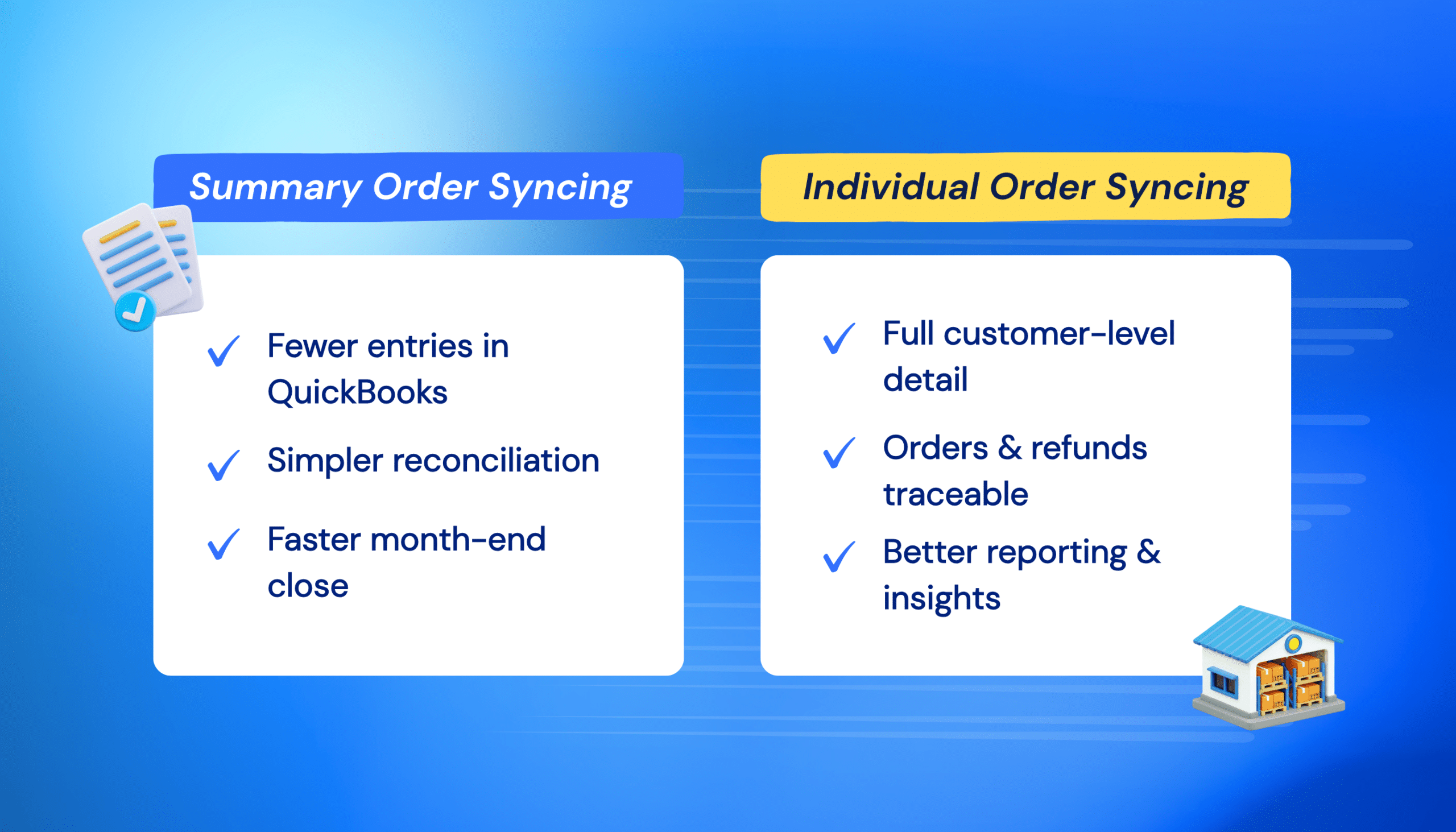
Summary syncing takes all of your Shopify orders from a set period, usually one day, and compresses them into a single QuickBooks entry. Two hundred orders become one line: total sales, total tax collected, total fees deducted.
The upside is simplicity. Your QuickBooks file stays lean, month-end close is faster, and you’re not scrolling through hundreds of entries just to reconcile a bank deposit. For stores doing high volume with low average order values (think $15-$30 products, paid at checkout, shipped the same day) this is often all you need.
Individual Order Syncing
Individual syncing does exactly what it sounds like. Each Shopify order creates its own QuickBooks transaction, carrying over the customer name, line items, tax breakdown, discounts, shipping, and payment method.
The obvious cost is volume. Two hundred orders a day means 200 entries in QuickBooks. But the payoff is visibility. Every transaction is traceable. Every customer has a record. And when someone requests a refund in March for an order placed in January, you’re not hunting through aggregated daily totals to figure out what happened.
When Individual Order Syncing Makes Sense
Summary syncing is efficient, and for the right store, it’s the right call. But efficiency has a ceiling, and these are the business models that hit it.
1. Wholesale and B2B with Payment Terms
You can’t track accounts receivable with a summary entry. If you sell to businesses on net 30 terms, you need individual invoices in QuickBooks. One per order, per customer, with the balance owed clearly visible. That’s how you run an aging report, follow up on late payments, and keep cash flow predictable.
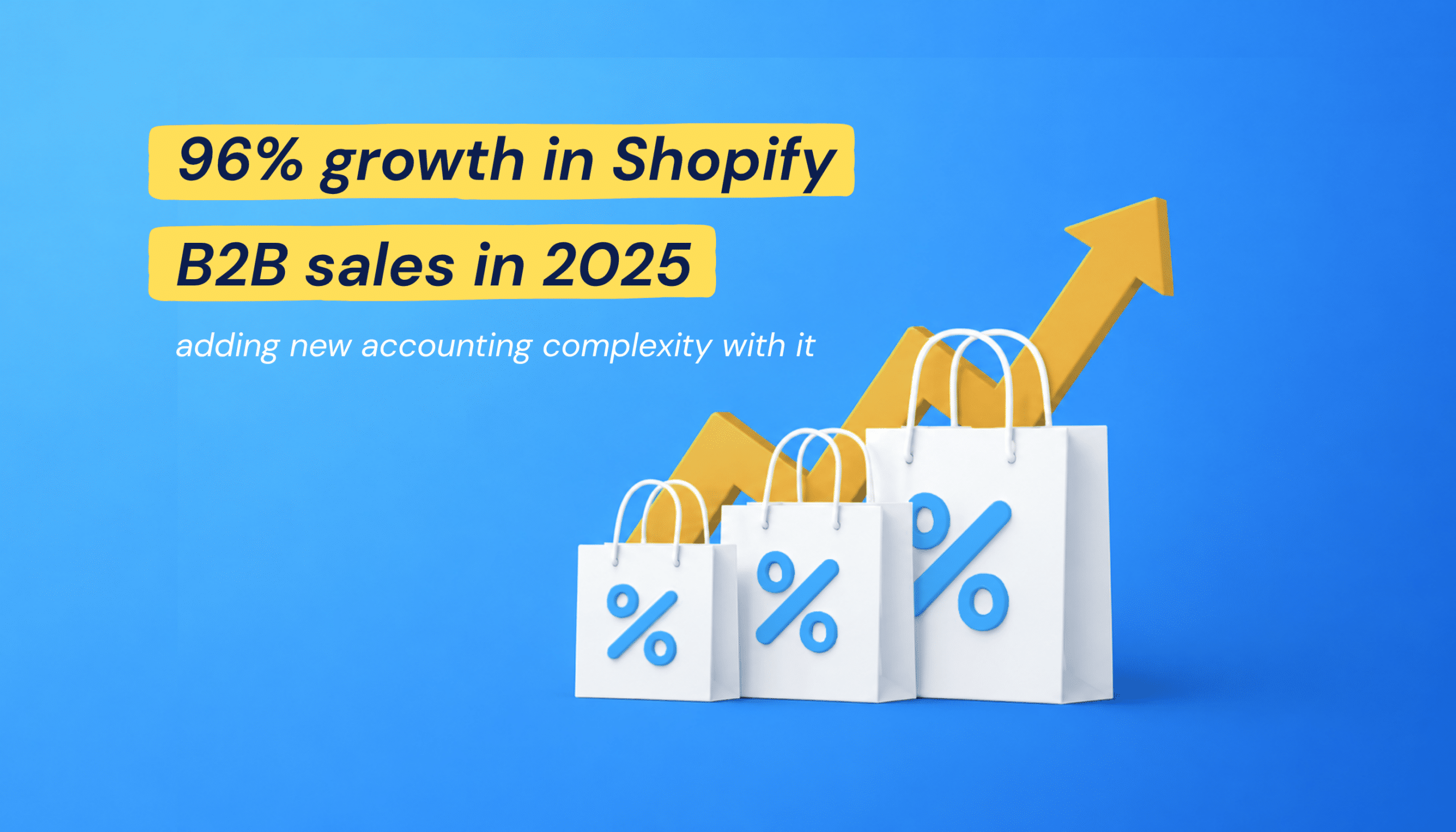
And this isn’t a niche use case anymore. B2B sales on Shopify grew 96% in 2025, nearly doubling year-over-year. More merchants are adding wholesale alongside their DTC businesses, and their accounting needs are keeping up.
2. Customer-Level Reporting
With individual syncing, QuickBooks becomes more than a ledger. It becomes a customer database. You can see which accounts are your most valuable, track repeat-purchase behavior, and pull revenue-by-customer reports without logging back into Shopify or cross-referencing spreadsheets.
Summary syncing hides all of this behind a single daily number.
3. Refund and Return Reconciliation
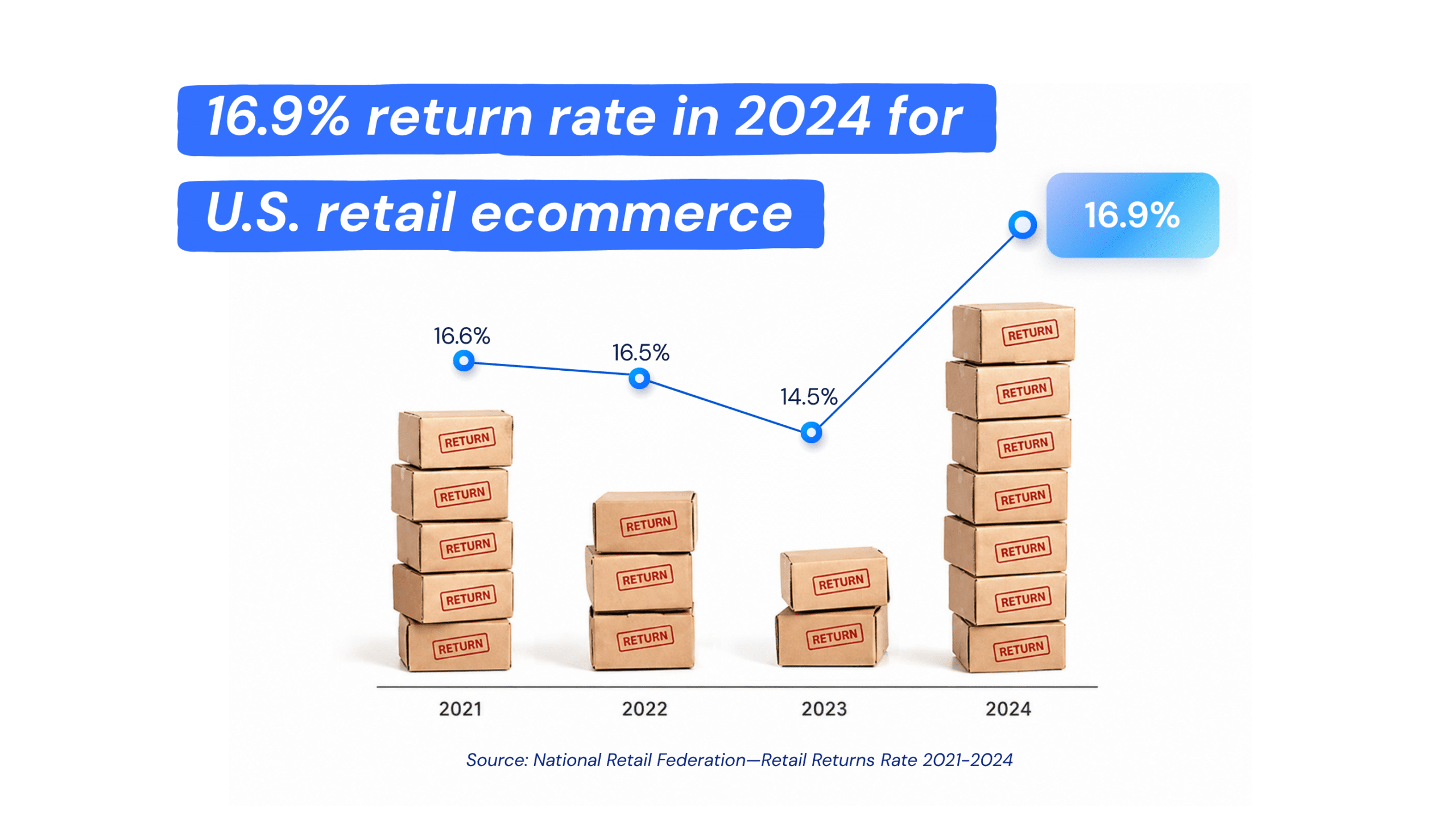
Ecommerce return rates hit 16.9% of total U.S. retail sales in 2024, and online-only stores typically run even higher. Every return triggers a financial adjustment: revenue reverses, tax liability decreases, and sometimes inventory restocks. Individual syncing ties each adjustment to the exact order it came from. Summary syncing just nets the refund against the day’s total. No name, no order number, no trail.
4. Fewer Orders, Bigger Tickets
If you’re processing 10-20 orders a day at $500+ each, summary syncing solves a problem you don’t have. The volume isn’t high enough to clutter QuickBooks, and every transaction is significant enough to deserve its own record.
Limitations of Summary Order Syncing
Summary syncing isn’t flawed. It’s limited. And those limits tend to surface at the worst possible moments: during an audit, at tax time, or when your accountant asks a question you can’t answer from QuickBooks alone.
Refunds Disappear into Daily Totals
Process a $400 refund on a Tuesday? Summary syncing subtracts it from that day’s sales total. There’s no separate line item, no customer name, and no link to the original order. If the IRS asks you to substantiate a specific transaction, you’ll need to leave QuickBooks entirely and dig through Shopify’s records to reconstruct what happened.
Wholesale Workflows Don’t Fit
Without individual customer records in QuickBooks, there are no aging reports, no receivable balances, and no way to track who’s paid and who hasn’t. You’re essentially managing your B2B accounts outside your accounting system, which defeats the purpose of having one.
Mixed Revenue Streams Get Flattened
This is where the friction compounds. A store selling both $18 candles (DTC, paid at checkout) and $3,000 wholesale orders (net 30 terms) sees both transaction types collapsed into the same daily total. Separating them later requires manual journal entries, the exact kind of bookkeeping busywork that automation is supposed to eliminate.
| Quick check: pull up your last five Shopify refunds. Can you find each one in QuickBooks as a distinct entry linked to the original order? If not, your sync method is hiding details you’ll eventually need. |
How to Sync Shopify Orders Individually in QuickBooks with MyWorks
Setting up individual order syncing doesn’t require a complicated migration or a custom-built connector. MyWorks connects Shopify directly to QuickBooks Online, QuickBooks Desktop, or Xero. As a Built for Shopify app and Intuit Platinum Partner, it lives inside your Shopify admin. No separate platform to manage.
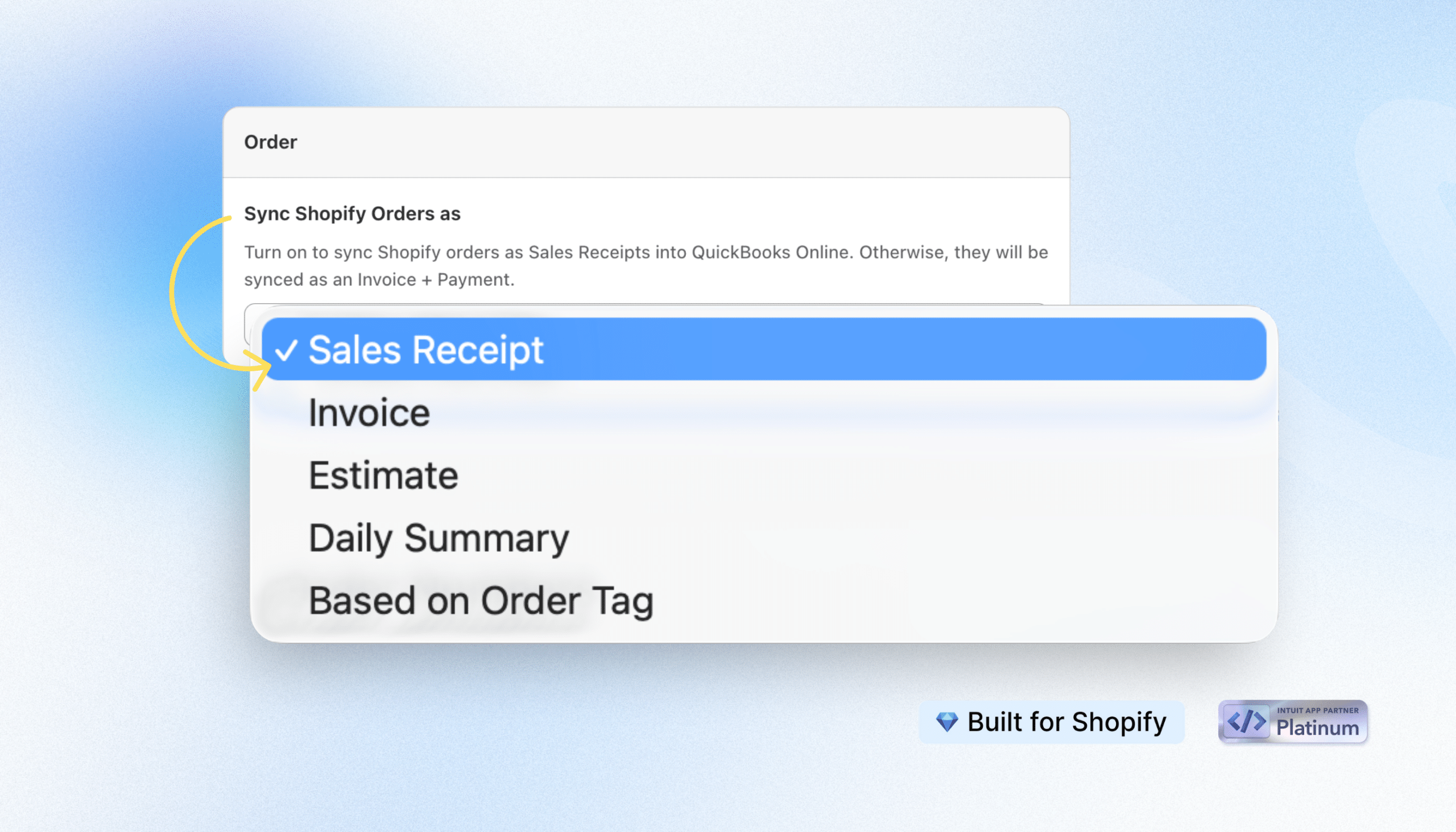
During setup, you choose how orders appear in QuickBooks from the MyWorks Sync > Settings > Order tab. Sales receipts are the default, but you can switch to other methods depending on which version of QuickBooks you use:
- Sales receipts (QuickBooks Online and Desktop): each order syncs as a paid transaction. Ideal for DTC retail, where payment happens at checkout.
- Invoices (QuickBooks Online and Desktop): each order syncs with payment terms attached, creating an open receivable. Ideal for wholesale and B2B accounts.
- Estimates (QuickBooks Online): orders sync as non-binding records until payment is confirmed. Ideal for pre-orders or custom products.
- Sales orders (QuickBooks Desktop): orders sync as non-posting records that can be converted to invoices once fulfilled.
- Daily summaries (QuickBooks Online): all orders are grouped into a single daily entry. Ideal for high-volume stores that don’t need individual detail.
Every individually synced order carries the full transaction record into QuickBooks: customer details, line items, sales tax mapped to your QuickBooks tax rates, shipping, discounts, and payment method.
Processing fees from Shopify Payments, PayPal, and Stripe sync to mapped expense accounts, either inside daily payouts or as line items on individual orders, depending on how you configure the integration.
Once refund syncing is enabled, refunds and partial refunds sync as separate Refund Receipt or Credit Memo transactions in QuickBooks, with inventory automatically restored when inventory syncing is on.
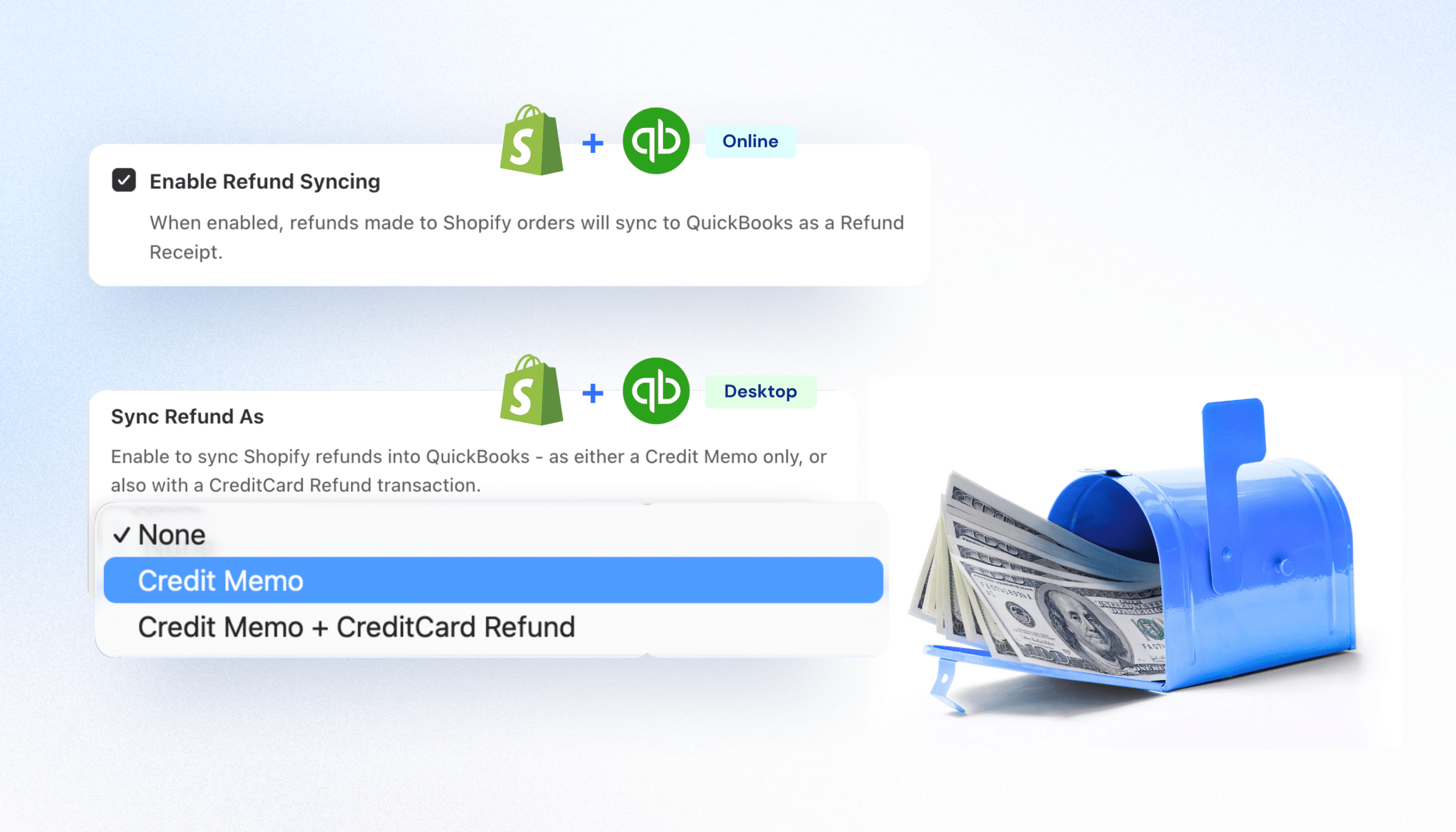
You control the sync frequency (as often as every five minutes) and map exactly where each data point lands in your chart of accounts. Your books stay organized the way you and your accountant expect, without manual cleanup.
Not sure which method fits? Check how orders have been recorded in QuickBooks up to this point, or ask your bookkeeper for their recommendation.
| Quick win: want to test individual syncing without changing everything? Start with your wholesale orders only. Configure MyWorks to sync B2B orders as invoices while keeping DTC orders as summaries by using Shopify order tags. You’ll see the difference in your QuickBooks reports within a week. |
When MyWorks’ Hybrid Order Syncing is the Better Choice
For most growing Shopify stores, the real answer isn’t summary or individual syncing: it’s both.
Let’s say you process 250 retail orders a day, averaging $35 each, plus 10 wholesale orders averaging $2,000 each on net 30 terms. You don’t want 260 individual QuickBooks entries every day.
But you also can’t afford to bury those wholesale invoices inside a daily summary where no one can track them.
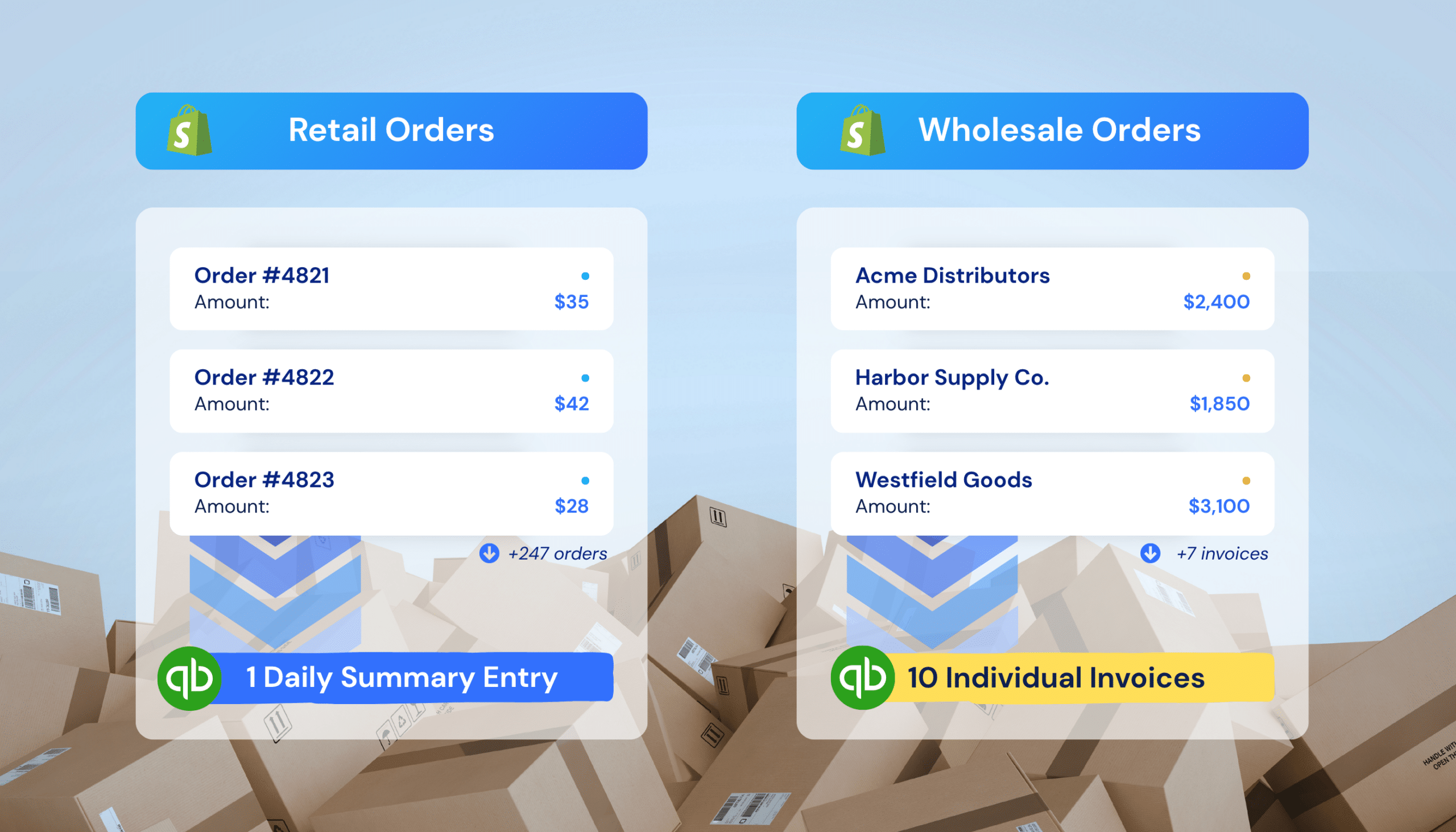
That’s exactly what hybrid order syncing from MyWorks is built for. Your 250 retail orders sync as a single daily summary. Clean, consolidated, easy to reconcile. Your 10 wholesale orders sync individually as invoices with customer names, line items, and payment terms. Both run automatically from the same Shopify store. MyWorks uses your sync settings and Shopify order tags to route each transaction to the right format without any manual sorting.
This works for DTC brands expanding into wholesale, stores mixing paid-at-checkout with pay-later orders, or any merchant who needs clean books and granular detail at the same time, without compromising on either.
MyWorks Matches Your Sync Method to How You Actually Sell
Summary syncing keeps books clean for high-volume retail. Individual syncing preserves the detail that wholesale sellers, accountants, and growing businesses depend on. Hybrid order syncing gives you the best of both worlds. And MyWorks is the only integration that supports all three methods right from the backend of your Shopify store.
How your orders sync into QuickBooks should reflect how your business actually operates, not how your integration forces you to work.
Get started with MyWorks and set up the right sync method for your store in minutes.
FAQs About Syncing Shopify Orders to QuickBooks
1. Should Shopify Orders Sync Individually or as Summaries in QuickBooks?
It depends on how you sell. High-volume DTC stores with hundreds of small daily orders typically benefit from summary syncing, which keeps QuickBooks clean and reconciliation fast. Stores with wholesale accounts, high-value orders, or a need for customer-level reporting should sync individually. MyWorks supports both and lets you combine them with hybrid syncing.
2. How Do I Sync Shopify Orders Individually in QuickBooks?
You need a Shopify-to-QuickBooks integration that supports individual order syncing. With MyWorks, you choose your preferred sync method during setup (sales receipts, invoices, estimates, sales orders, or daily summaries, depending on your QuickBooks version) and the system transfers each order into QuickBooks with full customer and transaction details. Everything is configured from inside your Shopify admin.
3. Can QuickBooks Handle Large Numbers of Individual Shopify Transactions?
QuickBooks Online handles high transaction volumes, but file performance can slow as it grows. For stores processing hundreds of orders daily, syncing everything individually may create more entries than necessary. That’s where hybrid order syncing helps. Sync your B2B orders individually while grouping routine retail orders into summaries. It’s the best way to automate your Shopify accounting without sacrificing detail or speed.
4. What is Hybrid Order Syncing?
Hybrid order syncing combines summary and individual syncing based on order type. A store selling both retail and wholesale can sync DTC orders as daily summaries and B2B orders as individual invoices, automatically, from the same store. MyWorks uses your sync settings and Shopify order tags to route each transaction to the right QuickBooks format without manual intervention. It’s particularly useful for businesses with mixed DTC and wholesale revenue.