



WooCommerce store owners often choose Synder because it covers a lot of ground with multichannel support. But if you’re running a WooCommerce-first store and require a WooCommerce-dedicated QuickBooks sync, you may run into some issues. For instance, prices jump once you reach a certain number of transactions, and you have to manage sync settings in an external dashboard rather than in your store. Plus, those historical imports can eat up your monthly credits fast without any warning.
If any of that sounds familiar, this guide is here to help you switch from Synder to MyWorks. MyWorks is the best Synder alternative for WooCommerce. It comes with a WordPress plugin that allows you to manage your WooCommerce sync with QuickBooks or Xero directly from your store’s admin panel.
This guide focuses on WooCommerce stores using QuickBooks Online. If you’re on QuickBooks Desktop, MyWorks supports that, too, though the setup process will be a bit different.
4-Phase Guide: Migrate From Synder to MyWorks

As a WooCommerce store owner with a functional ecommerce accounting automation for WooCommerce, it can feel like it makes sense to put off switching accounting integrations. The fear is that something will break during the cutover: orders will go missing, transactions will be duplicated, and tax data will be scrambled.
But from our experience, the process is more straightforward than it looks. Here’s the four-phase guide for migrating from Synder to MyWorks.
Phase 1: Before You Disconnect Synder
Pre-switch work happens on the Synder side. The goal is to leave your books clean and defensible before MyWorks takes over.
Start by pulling your QuickBooks chart of accounts and confirming your income, refund, shipping, sales tax, and payment clearing accounts are correctly named. If you’ve been syncing for a while, Synder has likely created clearing accounts you forgot about. Note them down now so you know what MyWorks is connecting to later.
Next, reconcile your WooCommerce sales totals against what’s in QuickBooks for the past 30 days. If anything’s off (duplicate sales receipts, missing refunds, or fee discrepancies), use Synder’s rollback before cutting over. You don’t want to inherit any mistakes.
Note your final Synder sync date and verify all orders up to that point are in QuickBooks. This becomes the cutover line. Anything after this date will sync through MyWorks; anything before stays as-is.
Decide how you want orders to appear in QuickBooks once MyWorks is running. For QuickBooks Online, MyWorks syncs orders as sales receipts or invoices. You can also map orders to different QuickBooks customers based on the WooCommerce user role. Sales receipts work best when all your payment gateways collect payment at the time of the order; the sale and payment are recorded in a single transaction. Invoices work better when payment isn’t immediate, like bank transfer or net 30 accounts. The invoice stays open in QuickBooks until payment is recorded. If your store uses both, set it per payment method in MyWorks Sync > Settings > Payment Methods. Map immediate-payment gateways to sales receipts, or to invoices with the payment attached. Map delayed-payment methods to invoices that stay open until you record payment.
Finally, pause Synder’s auto-sync, but don’t cancel the subscription yet. You’ll want dashboard access for the next week or so to verify historical syncs or troubleshoot.
Quick check: if your current QuickBooks file has unreconciled transactions older than 60 days, fix those first. A new integration won’t clean up problems that existed before it was installed.
Phase 2: Install and Configure MyWorks
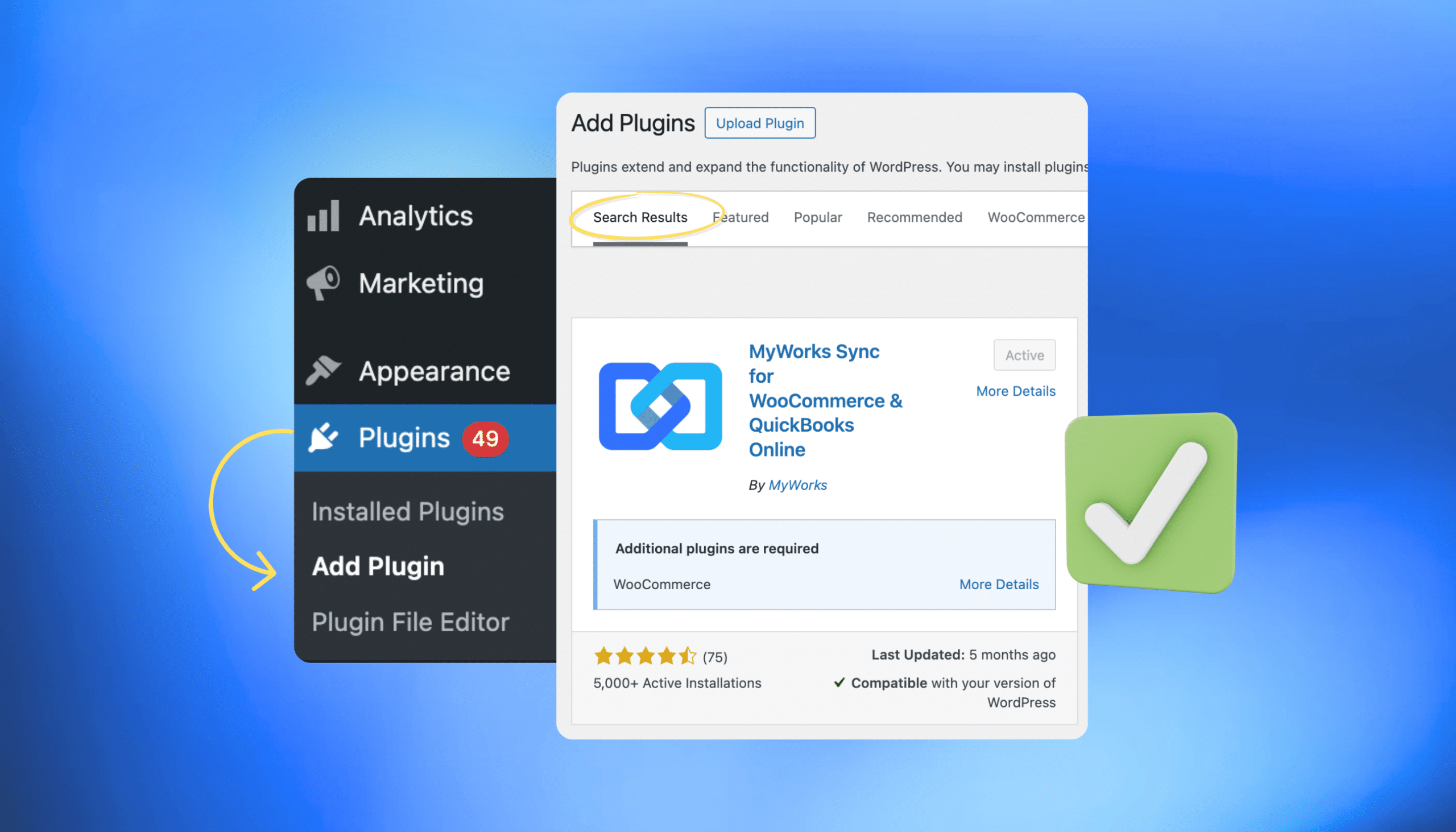
Unlike Synder, which connects through your payment gateways from an external dashboard, you can install the MyWorks helper plugin directly inside your WooCommerce admin.
- Before you connect to QuickBooks Online, turn off all automatic sync switches in MyWorks Sync > Settings > Automatic Sync.
- Set a sync block threshold in MyWorks Sync > Settings > Order: enter your highest current WooCommerce order ID to prevent any historical orders from firing unexpectedly.
- Connect only after both of these are confirmed off and set. This one step prevents the most common migration headache: an unwanted bulk sync creating a mess in QuickBooks the moment the OAuth connection is made.
- Install the MyWorks plugin from your WordPress dashboard (Plugins → Add New → search “MyWorks”).
- Then create a MyWorks account at the plan tier that matches your monthly order volume.
Authorize QuickBooks Online via the plugin’s connection page. One OAuth handshake later, the two systems are talking.
The setup wizard walks through these mappings:
- Chart of accounts: route WooCommerce income, refunds, shipping, and discounts to the QuickBooks accounts you confirmed in Phase 1.
- Tax codes: map each WooCommerce tax rate to the corresponding QuickBooks tax code. This is the single most common reason books drift between systems, so take your time here.
- Payment gateways: map Stripe, PayPal, and other gateways to specific QuickBooks bank or clearing accounts.
- Products: match existing WooCommerce products to QuickBooks items, or let MyWorks create them if they don’t exist yet.
- Sync method: apply the decision you made in Phase 1—sales receipts or invoices.
MyWorks syncs to QuickBooks Online on a queue basis; by default, every 10 minutes, with options to set it to 5, 10, 30, or 60 minutes depending on your plan and preference. That’s a major operational upgrade if you’ve been on Synder’s Basic plan, which only syncs once a day.
If your WooCommerce stack includes extensions like Subscriptions, Bundles, Avalara, or Role-Based Pricing, confirm they’re configured correctly. MyWorks supports 20+ WooCommerce extensions natively, and our setup call included with paid plans is worth booking if you’re running anything beyond a standard storefront.
Phase 3: Cutover and Test
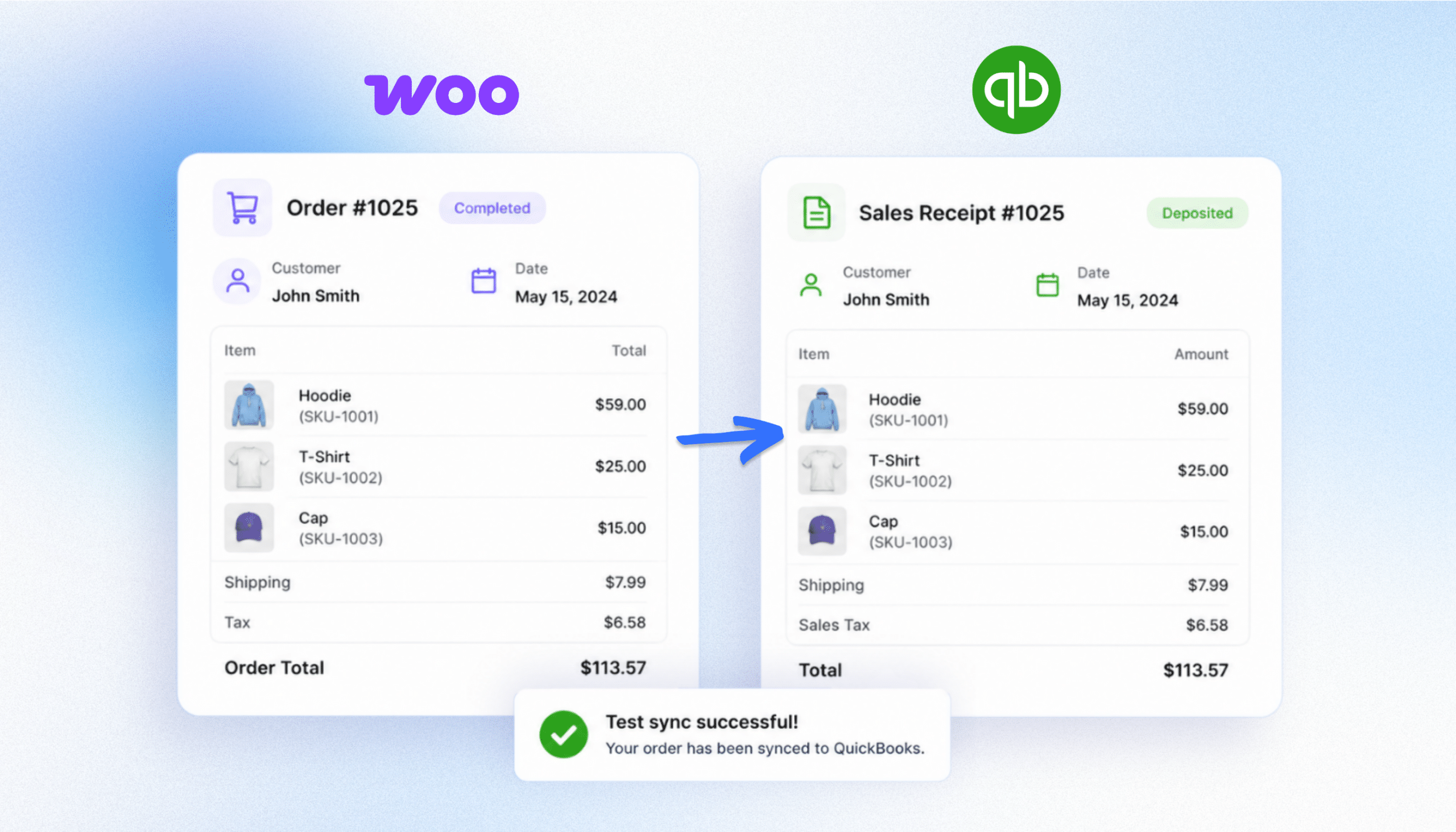
Don’t flip the switch on the entire store at once. Place a single test order in WooCommerce (a small one, real or with a discount code) and watch where it lands in QuickBooks.
What you’re checking:
- Sales receipt or invoice created with the correct customer name, line items, and amounts.
- Tax mapped to the right QuickBooks tax code, with the amount matching what WooCommerce calculated at checkout.
- Payment method routed to the right bank or clearing account in QuickBooks.
- Shipping line item appears separately, on the right account.
- Order number carries over, so you can trace it back to WooCommerce.
If anything looks off, you adjust the mapping inside the plugin and resync. Once the test order checks out, enable automatic sync for new orders, customers, products, and inventory status triggers one at a time. Pick the order status that triggers the sync, Processing or Completed, depending on when you want orders in QuickBooks. MyWorks tracks what it has already synced, so an order moving from Processing to Completed won’t sync twice.
MyWorks logs every sync event in MyWorks Sync > Log, so if a transaction fails, you’ll see exactly what happened and where.
For historical data, use the Push section in MyWorks Sync > Push to backfill any orders MyWorks didn’t pick up automatically. All plans allow unlimited historical access; pushes count against your monthly order sync limit, so if you have years of historical orders to backfill, factor your plan’s order limit into the timeline before you start.
Test refund syncing too. Process a small refund on a test order, check that it lands as a refund receipt in QuickBooks, and verify the tax adjustment carries through.
Phase 4: Cancel Synder
Wait at least one full sync cycle before canceling. We suggest running MyWorks alongside Synder with auto-sync paused for one to two weeks, reconciling daily totals between WooCommerce, MyWorks, and payment processor reports. If the numbers match for that window, you’re ready.
When you cancel, do it from inside the Synder dashboard. Per Synder’s terms, all purchases are final and non-refundable, and cancellation terminates access immediately, regardless of your plan. If you’re mid-way through an annual subscription, you forfeit whatever time remains. Timing is important: cancel the day before your renewal date, not mid-cycle.
What doesn’t change: any historical data Synder already synced into QuickBooks stays there. Synder is a sync engine, not your system of record. Your sales receipts, journal entries, customers, and deposits remain exactly as they were on your last sync date.
That’s the mechanical work covered. The rest of this guide is for context: why merchants choose Synder, where it falls short for WooCommerce users, and what makes MyWorks a different fit.
Why Merchants Choose Synder in the First Place
Synder is built for businesses that sell through multiple channels and need all of those transactions to end up correctly in one accounting system.
For example, if you sell on Shopify and Amazon, accept direct payments through Stripe and PayPal, and also take in-person payments with Square, Synder pulls all of those transactions into QuickBooks or Xero. It supports more than 30 platforms—including Stripe, PayPal, Shopify, Amazon, eBay, Etsy, BigCommerce, Square, and WooCommerce—and lets you create Smart Rules to automatically categorize sales, fees, taxes, refunds, and other transactions.
That makes sense when you’re managing several storefronts and payment processors at once. But if WooCommerce is your primary store, you don’t necessarily need a tool that connects every marketplace directly to QuickBooks.
WooCommerce can already consolidate orders from channels like Amazon, Facebook, and Instagram using marketplace integrations. MyWorks simply syncs that consolidated WooCommerce data to QuickBooks, giving you one consistent workflow instead of multiple independent integrations to manage.
Read: How to Automate Multichannel Ecommerce Accounting With MyWorks
Where Synder Falls Short for WooCommerce Users
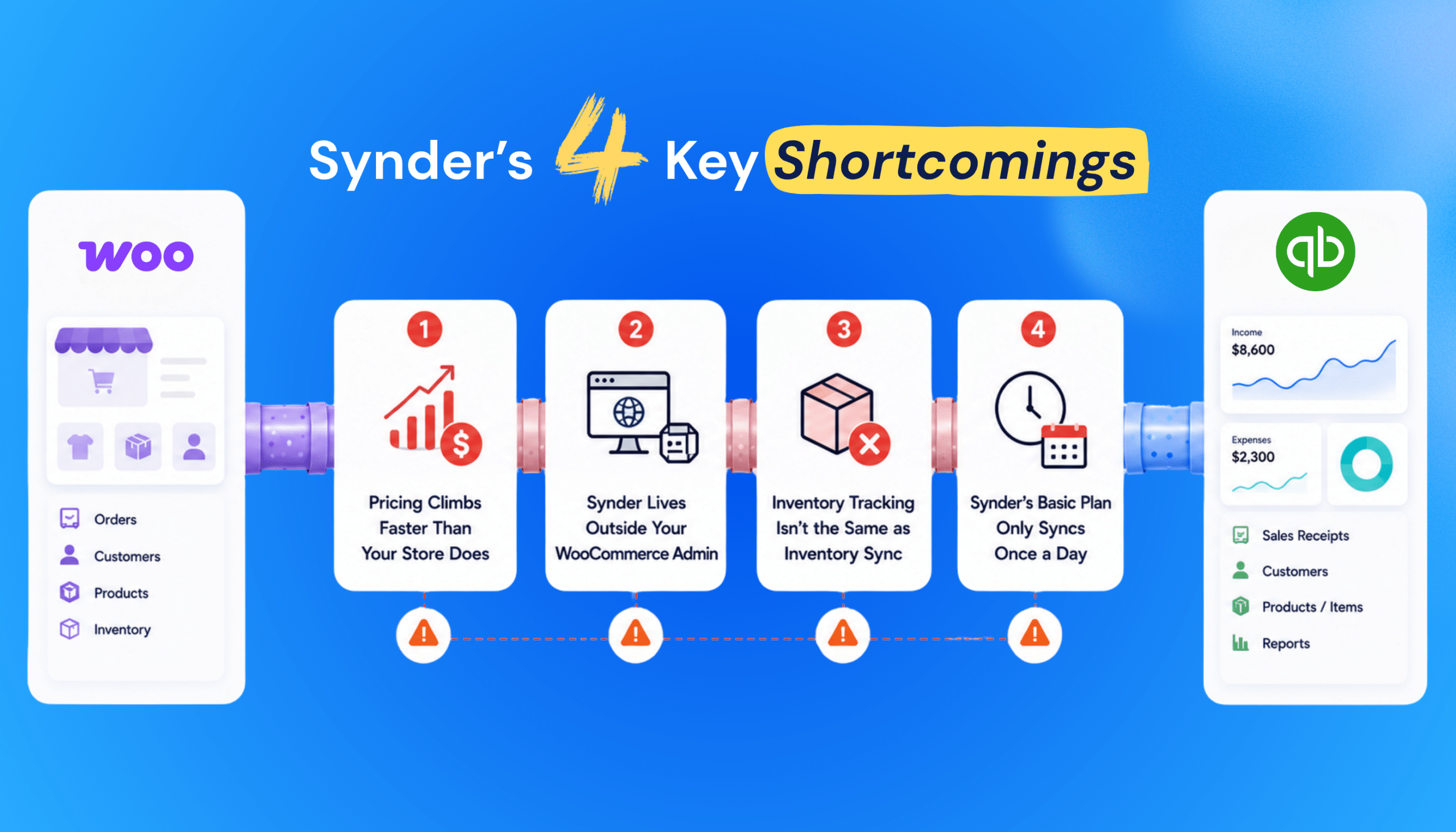
For WooCommerce-first stores, four patterns surface once Synder has been running for a few months.
1. Pricing Climbs Faster Than Your Store Does
Synder’s pricing is built around monthly transaction tiers. The Basic plan covers up to 500 transactions at $65 a month. Cross that threshold, and you’re moved to Essential at $115 monthly; a 77% jump for the next bracket. Synder’s website states that all purchases are final and non-refundable.
2. Synder Lives Outside Your WooCommerce Admin
Synder runs as a standalone SaaS at go.synder.com, not as a plugin inside your WooCommerce admin. Your store connects through that external dashboard, often via Stripe or PayPal rather than directly through WooCommerce. That means every sync configuration, error log, and field mapping lives outside the platform where your store runs.
3. Inventory Tracking Isn’t the Same as Inventory Sync
Synder syncs inventory one-way: WooCommerce to QuickBooks. If you adjust stock in QuickBooks after receiving a shipment or making a manual correction, that change doesn’t push back to your store. Your WooCommerce inventory keeps showing the old count, which leads stores to oversell products they no longer have.
Synder’s inventory feature on Basic and Essential plans can’t create inventory-type items in QuickBooks. You have to manually convert them. Automatic inventory item creation is only available on Pro and above, which starts at $275 a month.
4. Synder’s Basic Plan Only Syncs Once a Day
Synder’s sync frequency depends on your plan tier. Basic supports daily sync only. Hourly sync requires Essential ($115 per month); faster intervals require Pro or above. For a WooCommerce store processing orders throughout the day, a daily sync means your QuickBooks records are always hours behind and any troubleshooting you do is working off yesterday’s data.
Why MyWorks is the Best Synder Alternative for WooCommerce and QuickBooks
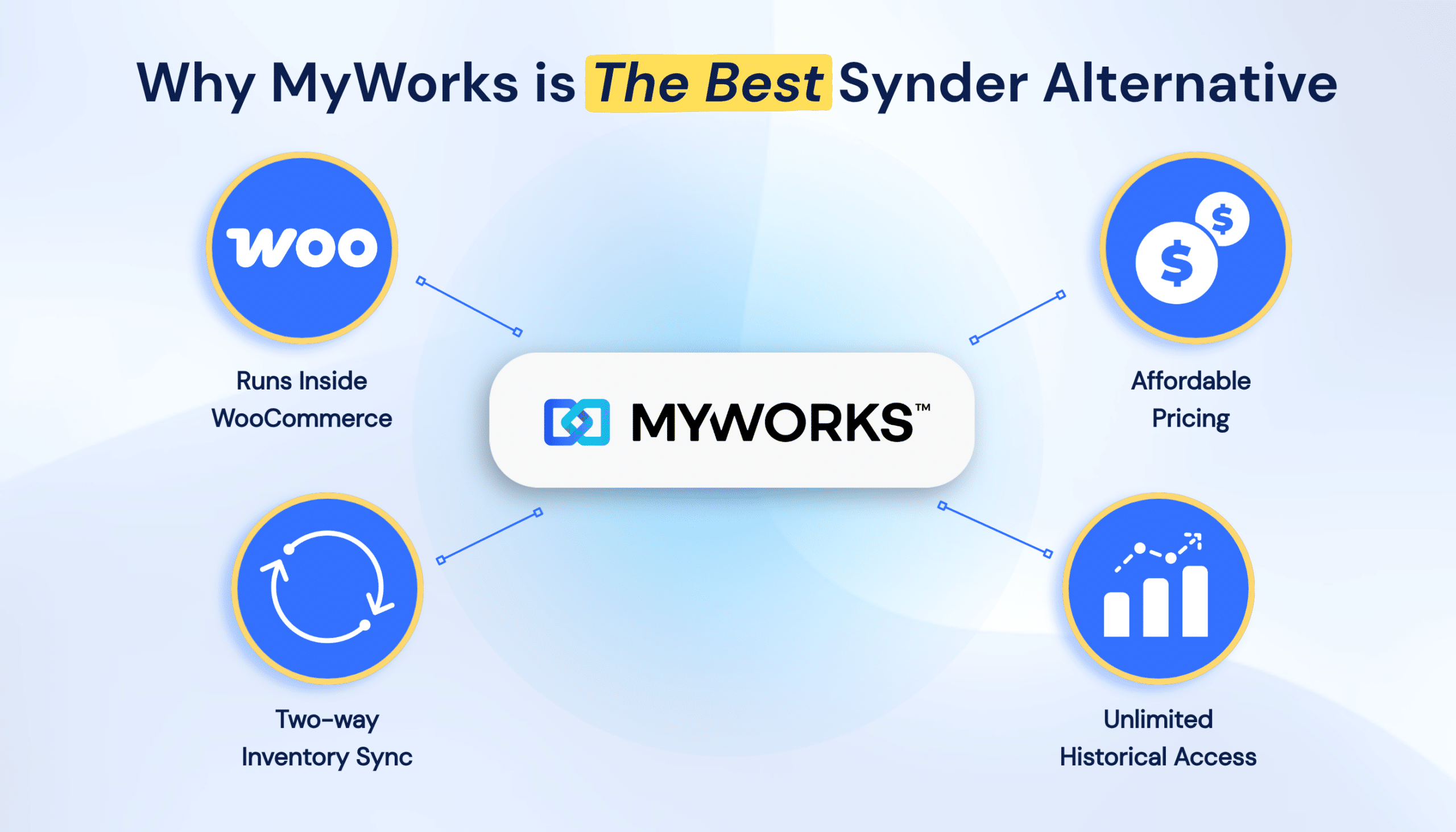
MyWorks provides deep integration for a single store-and-accounting pairing. For WooCommerce and QuickBooks specifically, that shows up in four places.
1. MyWorks Runs Inside WooCommerce
MyWorks installs as a WordPress plugin, so sync settings, error logs, and field mappings live in the same dashboard you use to manage products and orders. When a sync fails, the alert appears in WooCommerce, not on a separate platform.
2. Pricing Matches how WooCommerce Stores Grow
Paid plans start at $19 per month and scale based on order volume, not transaction tier. With MyWorks, growing past 500 monthly orders doesn’t trigger an increase in the way Synder’s Basic-to-Essential bracket does.
3. Inventory Sync Goes Both Ways
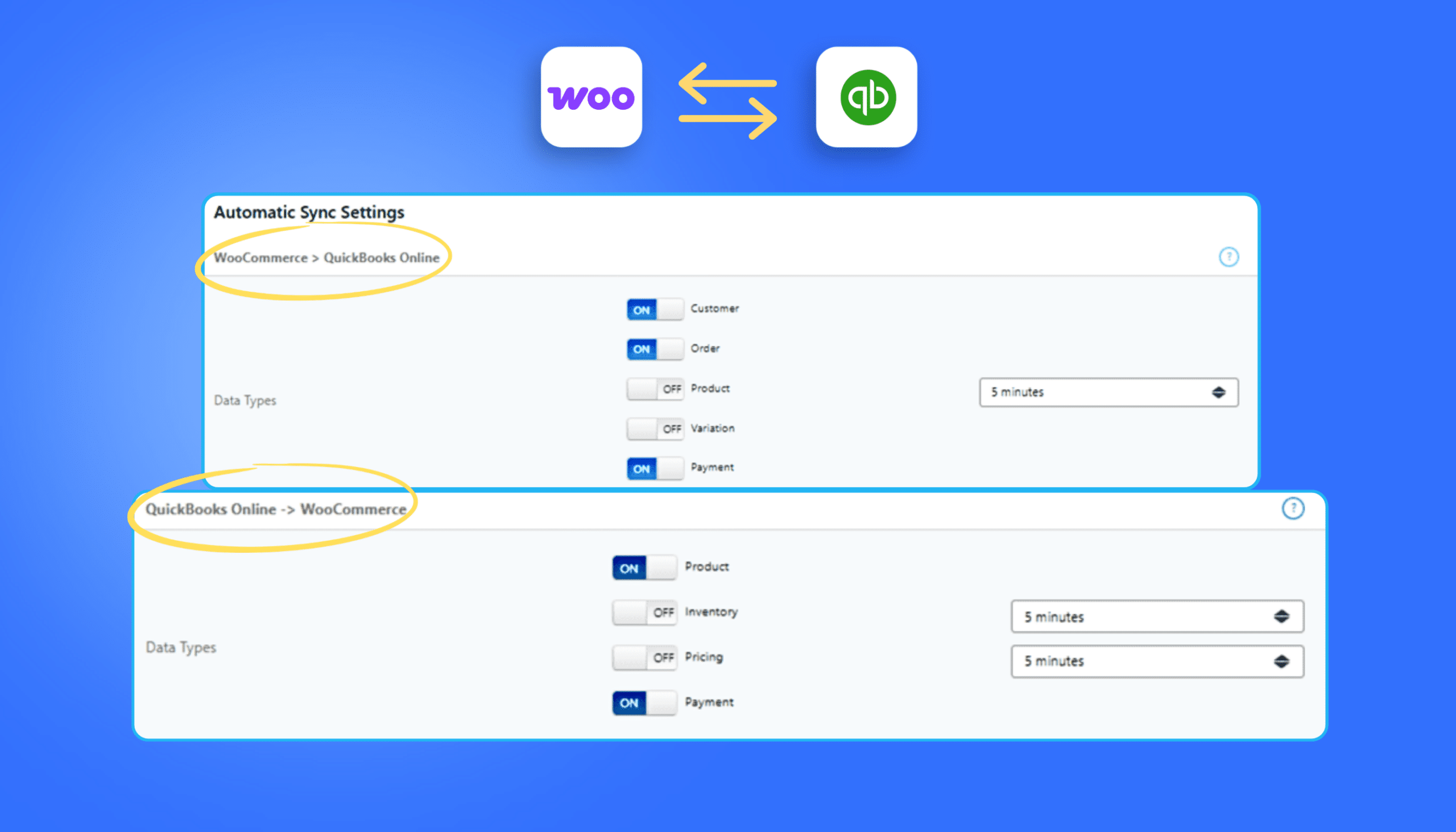
Update stock in QuickBooks after a shipment arrives, and the change pushes back to your WooCommerce store automatically. The same logic applies to product pricing and details, reducing the manual sync work left behind by one-way tools.
4. Historical Data Import is Built In
All plans give unlimited time-range access to historical orders. Pushes count against your plan’s monthly order sync limit, but there are no separate credit purchases on top.
MyWorks is purpose-built for WooCommerce and operates as an Intuit Platinum Partner, the highest tier of Intuit’s App Partner Program. It also natively supports 20+ WooCommerce extensions.
Side-by-Side: Synder vs. MyWorks for WooCommerce and QBO
| MyWorks | Synder | |
| Best for | WooCommerce-first stores syncing to QuickBooks | Multi-channel businesses with 3+ sales platforms |
| Architecture | Native WordPress plugin (runs inside WooCommerce admin) | External SaaS at go.synder.com |
| Connection method | Direct to WooCommerce | Often routed through Stripe or PayPal |
| Starting price | Free forever (Launch plan) | $65 per month (Basic, 500 transactions) |
| Pricing model | Tiered by monthly order volume | Tiered by monthly transaction count |
| Sync methods | 2 (sales receipts or invoices) for QuickBooks Online* | 2 (per-transaction or daily summary) |
| Inventory | Two-way sync; QuickBooks changes push back to WooCommerce | Transaction-based tracking only; no reverse sync to WooCommerce |
| Historical data import | Unlimited time (counts against your plan’s monthly order limit) | Unlimited on Premium only; 3 months on Pro; counts against sync limit on Basic/Essential |
| WooCommerce extension support | 20+ supported natively | No published Woo extension list |
| Refund policy | 14-day refund window | All purchases final and non-refundable |
*MyWorks supports additional sync methods for QuickBooks Desktop. This guide covers WooCommerce and QuickBooks Online only.
Who Should Still Consider Synder
Synder isn’t the wrong answer for everyone. If your business sells independently across multiple marketplaces and storefronts—such as Amazon, eBay, Etsy, Walmart, Shopify, and WooCommerce—and accepts payments through several gateways, Synder’s multichannel approach is designed to consolidate all of that activity into your accounting system.
If WooCommerce is the center of your ecommerce operation, however, the equation changes. Even if you also sell on Amazon, Facebook, Instagram, or other channels, those orders can flow into WooCommerce first through marketplace integrations. In that setup, MyWorks syncs the consolidated WooCommerce data directly to QuickBooks, eliminating the need for a separate multichannel accounting hub.
Make the Move From Synder to MyWorks Without Breaking Your Books
Switching accounting integrations doesn’t have to mean broken syncs, duplicate transactions, or scrambled tax data. With the four-phase playbook above, most WooCommerce stores migrate from Synder to MyWorks within a week, with zero gaps in their QuickBooks records.
Get started with MyWorks today, or book a demo to walk through your specific setup with a MyWorks specialist.

FAQs About Switching from Synder to MyWorks
1. How Long Does It Take to Migrate from Synder to MyWorks?
Most WooCommerce stores complete the migration from Synder to MyWorks within a week. Stores with complex extension stacks may want to book MyWorks’ complimentary setup screenshare for an extra layer of confidence.
2. What Happens to My Historical Synder Data in QuickBooks When I Switch to MyWorks?
Any data Synder already synced into QuickBooks (sales receipts, journal entries, customers, deposits) stays exactly where it is after you cancel. Synder is a sync engine, not a data store. MyWorks picks up from your cutover date forward, identifying orders by WooCommerce order number so historical orders push into QuickBooks without duplicating existing records.
3. Can I Get a Refund If I Cancel Synder Mid-Subscription?
No, all Synder purchases are final and non-refundable, with cancellation taking effect immediately and no proration. Ideally, you’d cancel just before your renewal date, after MyWorks has completed a full sync cycle. Compare WooCommerce and QuickBooks pricing to plan your transition.
4. Is MyWorks More Affordable Than Synder for WooCommerce and QuickBooks?
MyWorks is more cost-effective than Synder for WooCommerce stores. MyWorks paid plans start at $19 per month and scale based on monthly order volume; Synder’s Basic plan starts at $65 per month with a 500-transaction cap, pushing stores to Essential ($115 per month) once they cross the threshold.