



Syncing WooCommerce to QuickBooks Online automates the accounting work that usually eats hours every week. Orders, refunds, taxes, payment fees, and inventory updates flow into QuickBooks automatically, so your books stay accurate without manual entry.
The fastest way to connect WooCommerce to QuickBooks Online is with a dedicated integration like MyWorks. In this guide, we’ll walk through:
- What you need before setup.
- How to connect WooCommerce to QuickBooks Online step by step.
- The key sync settings to configure.
- How inventory, refunds, and payment mapping work.
Once setup is finished, your WooCommerce store and QuickBooks Online account stay in sync automatically.
What You Need Before You Start
Before connecting WooCommerce to QuickBooks Online, make sure you have:
- An active WooCommerce store on a Linux server.
- A valid SSL certificate (HTTPS required).
- WordPress 5.2+, WooCommerce 4.0+, and PHP 7.2+, with 512MB of memory recommended.
- Any QuickBooks Online account.
- Products added in WooCommerce, ideally with SKUs assigned.
- At least one payment gateway connected in WooCommerce.
- Bank accounts already configured in QuickBooks Online.
- Sales tax configured in both platforms if applicable.
- Admin access to both WooCommerce and QuickBooks Online.
If your products don’t have SKUs yet, add them first. WooCommerce can sync without SKUs, but product mapping becomes much harder to manage as your catalog grows. Most stores can complete the initial setup in about 30 minutes.
How to Sync WooCommerce to QuickBooks Online
For this walkthrough, we’ll use MyWorks, an Intuit Platinum Partner that syncs WooCommerce orders into QuickBooks individually, posting each as a sales receipt, invoice, or an estimate. With MyWorks, you can also determine how a WooCommerce order syncs into QuickBooks based on the customer role or payment method associated with the order.
MyWorks runs as a WordPress plugin inside your store, so if your WooCommerce site meets the requirements and runs normally, the integration will too.
Step 1: Create a MyWorks Account
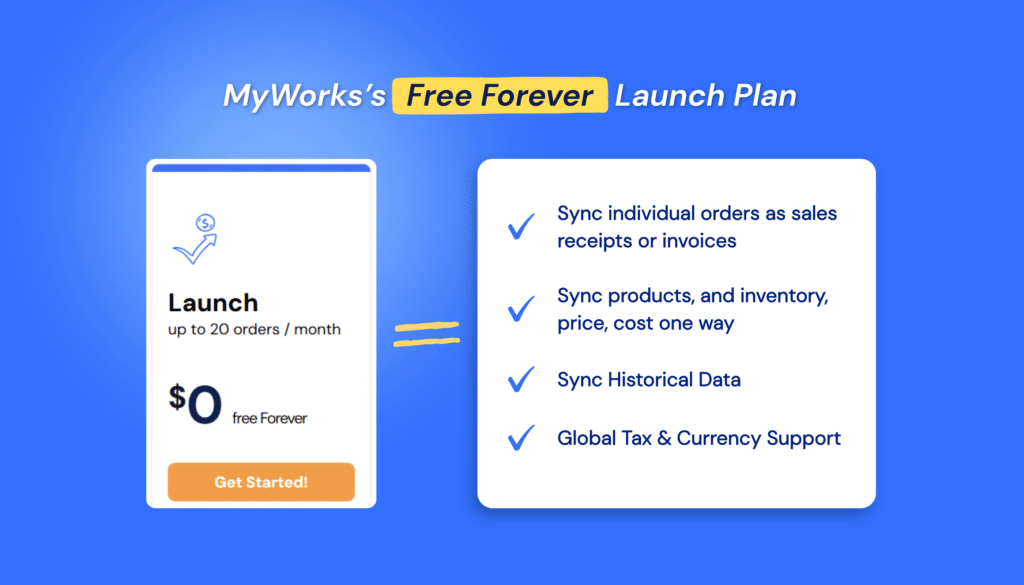
Sign up for a free forever Launch plan with MyWorks. The free plan supports up to 20 orders per month, which is enough to test the full WooCommerce QuickBooks Online integration before upgrading, if needed.
Step 2: Connect WooCommerce to QuickBooks Online
Inside your MyWorks account:
- Enter your WooCommerce store URL.
- Click Connect to QuickBooks.
- Sign in through Intuit.
- Select your QuickBooks company file.
- Authorize the connection.
MyWorks connects through Intuit’s official API, so your QuickBooks credentials stay managed by Intuit directly.
Step 3: Install the MyWorks Sync Plugin in WordPress
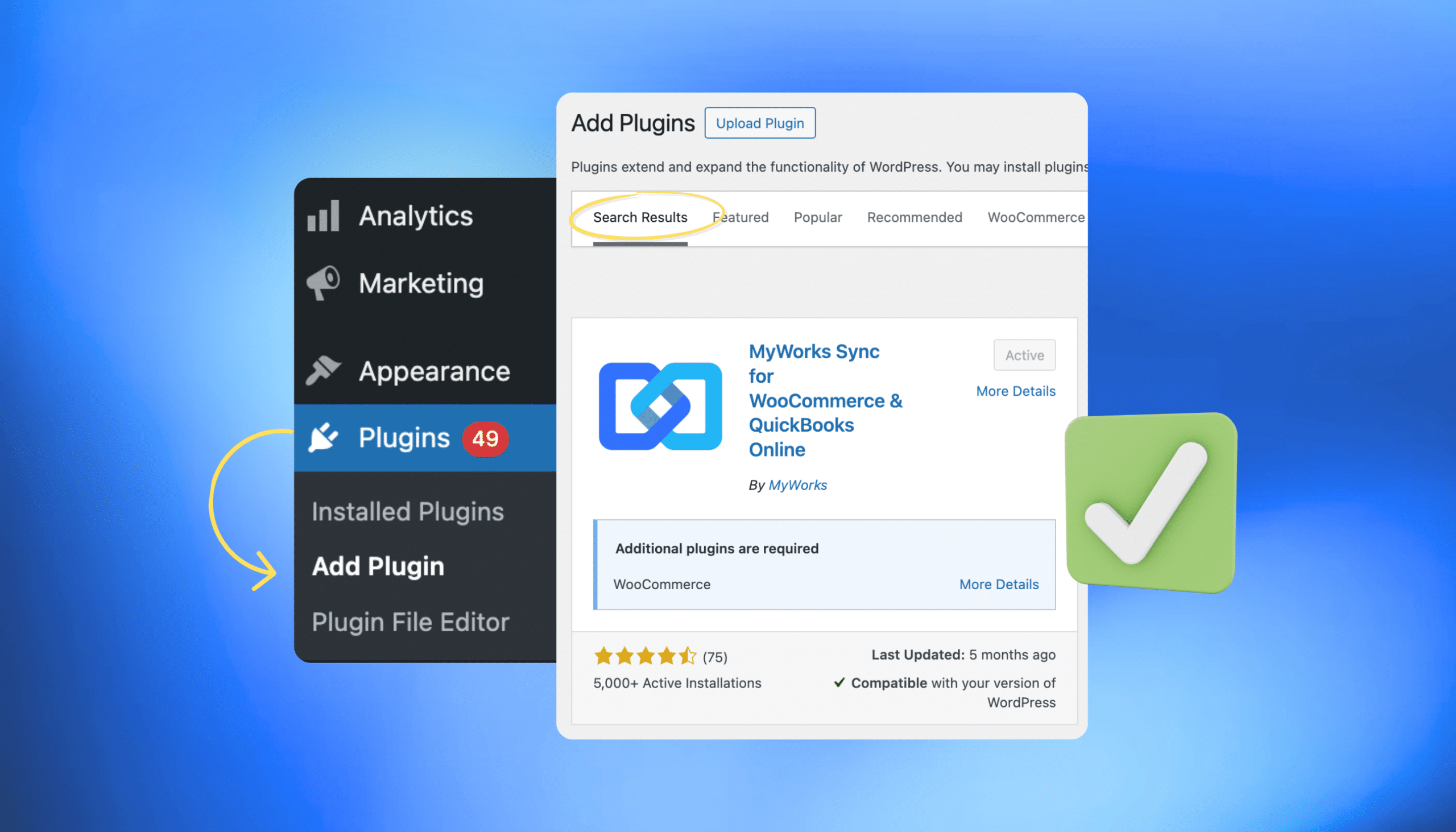
In WordPress:
- Go to Plugins → Add New.
- Search for “MyWorks” or “QuickBooks”.
- Install and activate the MyWorks Sync plugin.
You can also download the plugin ZIP file directly from your MyWorks dashboard and upload it manually. Once activated, you’ll see a new MyWorks Sync tab in your WordPress sidebar.
Step 4: Add Your License Key
In WordPress:
- Open MyWorks Sync → Connection.
- Copy your license key from your MyWorks account.
- Paste it into WordPress.
- Save changes.
This links your WooCommerce plugin to your MyWorks account.
Step 5: Map Products, Customers, and Payment Gateways
This is the most important part of the setup. Inside MyWorks:
- Map WooCommerce payment gateways like Stripe, PayPal, Square, and WooPayments to the correct QuickBooks clearing accounts.
- Match products between WooCommerce and QuickBooks, usually by SKU.
- Decide whether customers sync individually or under a generic “WooCommerce Customer”.
Most direct-to-consumer brands use a generic customer record to keep QuickBooks cleaner. B2B and wholesale stores usually sync customers individually for reporting and invoicing purposes.
Correct payment mapping matters because it determines how deposits reconcile later inside QuickBooks.
Step 6: Test the Sync with One Order
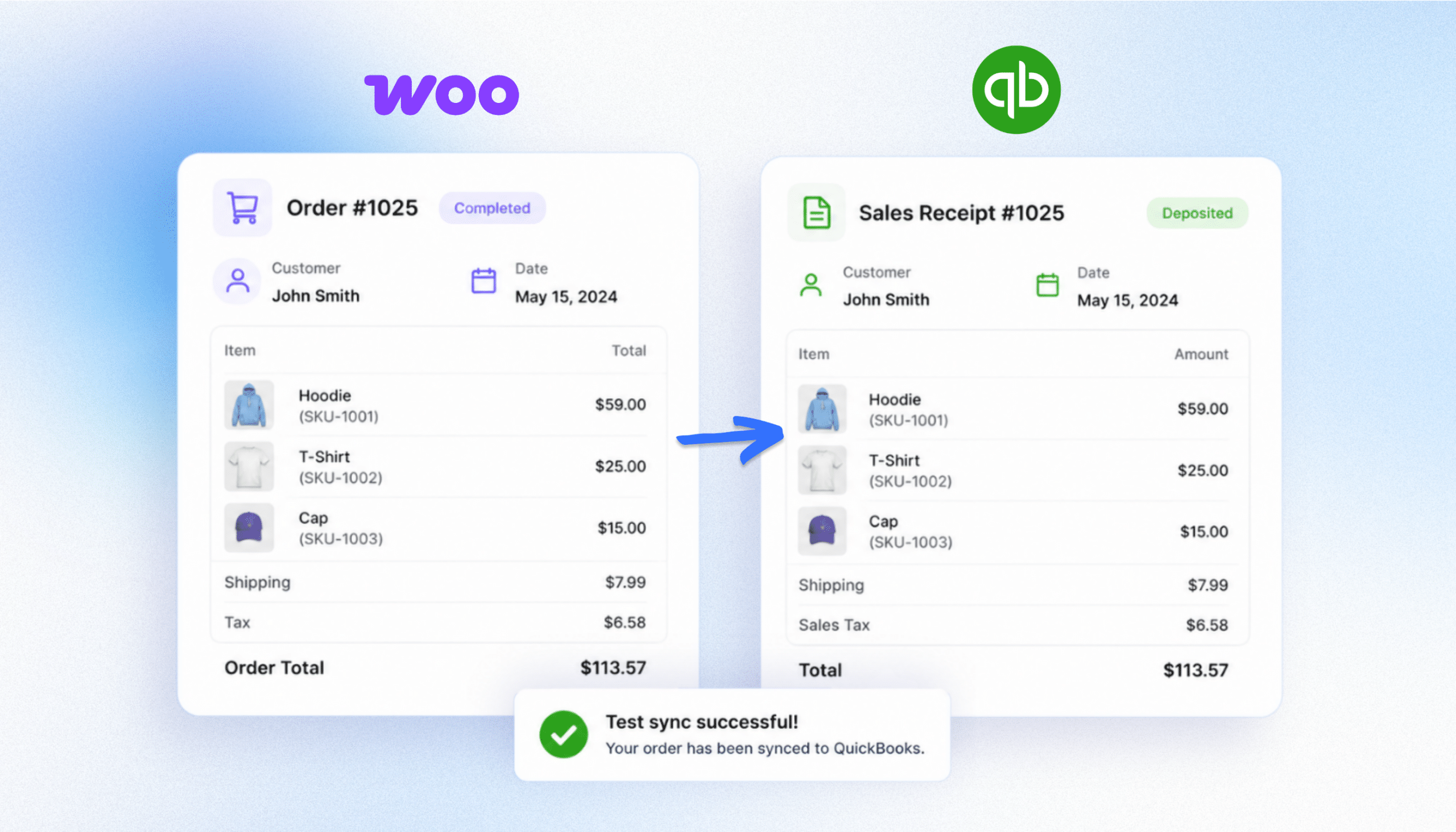
Before enabling automatic sync, manually sync one recent WooCommerce order. Check that the order appears correctly in QuickBooks with:
- The right products.
- Accurate taxes.
- Shipping charges.
- Payment mapping.
- Refunds if applicable.
If something looks wrong, fix the mapping now. Fixing one test order takes five minutes, but fixing 200 incorrectly synced orders later takes a weekend.
Step 7: Turn on Automatic Sync
Once your test order looks correct:
- Open MyWorks Sync → Settings → Automatic Sync.
- Enable automatic sync.
From this point forward, new WooCommerce orders, refunds, fees, taxes, and inventory changes sync into QuickBooks Online automatically.
The maximum sync frequency depends on your MyWorks plan:
- Launch: hourly.
- Rise: every 30 minutes.
- Grow and above: every 5 minutes.
You can opt for the max frequency available on your plan, or choose how often the sync runs.
Key Settings to Configure After Connecting
Once your WooCommerce QuickBooks Online integration is live, these settings make the difference between “working” and fully accurate bookkeeping.
1. Invoices vs. Sales Receipts
The difference between invoices and receipts is simple. Use:
- Sales receipts for fully paid ecommerce orders.
- Invoices for unpaid wholesale or net-term orders.
If you sell both DTC and wholesale, MyWorks posts each order type differently: sales receipts for paid DTC orders, invoices for net-term wholesale, with rules by customer role or payment method.
2. Customer Mapping
Sync customers individually if you:
- Run wholesale accounts.
- Need customer-level reporting.
- Manage subscriptions.
Use a generic ecommerce customer for high-volume DTC stores that don’t need detailed customer accounting records.
3. Payment Gateway Mapping
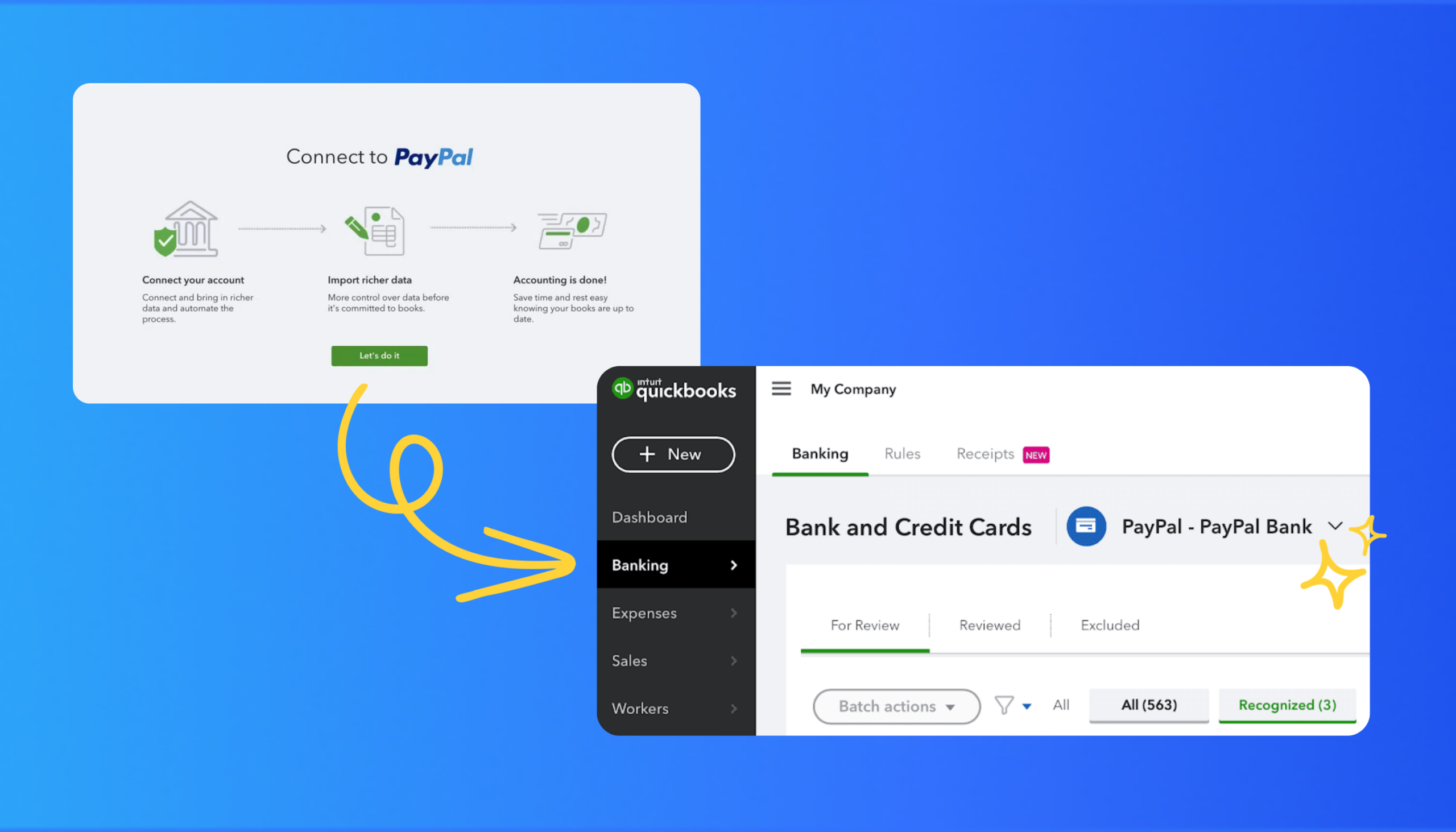
Each payment processor should map to its own QuickBooks clearing account:
- Stripe → Stripe clearing account.
- PayPal → PayPal clearing account.
- WooPayments → WooPayments clearing account.
This keeps bank reconciliation clean when payouts hit your bank account later. Check out our guide to syncing WooCommerce PayPal payments to QuickBooks Online for more.
4. Inventory Sync Direction
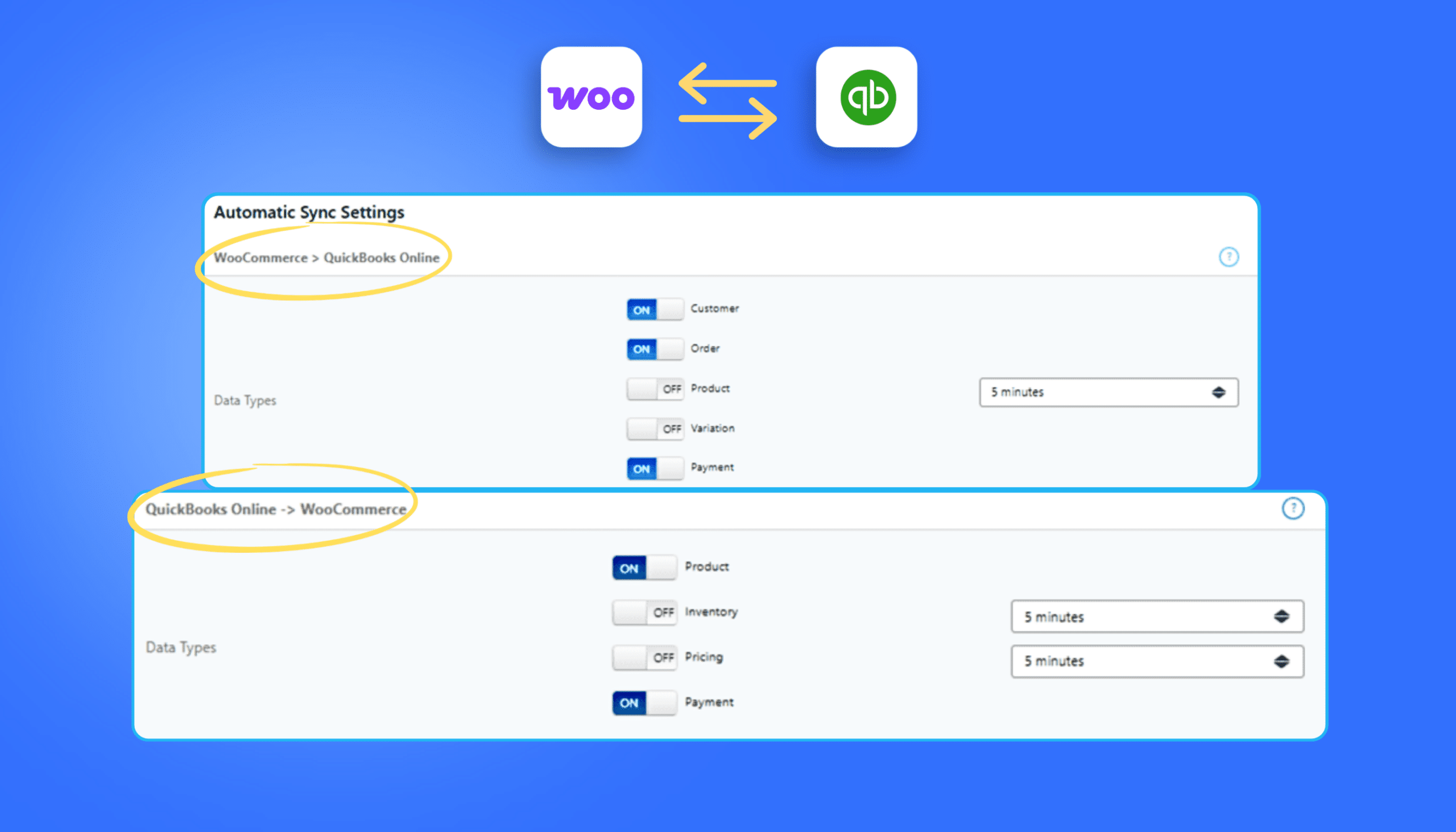
Most stores sync inventory from WooCommerce into QuickBooks. Some multi-channel businesses reverse this and manage inventory from QuickBooks instead, and others enable two-way sync. Your ideal setup depends on where inventory is managed operationally.
What Data Can Sync Between WooCommerce and QuickBooks Online?
A good integration moves more than order totals. When WooCommerce and QuickBooks Online are properly connected, the data flowing between them covers:
- Orders: customer name, line items, quantities, discounts, and totals.
- Refunds: full or partial, synced as a separate Refund Receipt in QuickBooks.
- Payments and processor fees: from Stripe, PayPal, Square, WooPayments, and other gateways.
- Taxes: by jurisdiction and rate.
- Inventory levels: adjusted in QuickBooks as stock moves in WooCommerce.
- Customers: as individual records or aggregated into a generic ecommerce customer.
- Bank deposits and payouts: matched to the correct clearing account.
Not every WooCommerce-QuickBooks plugin supports all of these sync types. Some connectors only send daily summary entries into QuickBooks. That works for high-volume stores that only need simplified accounting, but it breaks down if you need:
- SKU-level reporting.
- Customer-level reporting.
- Wholesale invoicing
- Detailed inventory tracking.

On WooCommerce, MyWorks syncs every order individually into QuickBooks, with full line-item, customer, tax, and inventory detail intact. You control how each order posts (sales receipt, invoice, or estimate) and if you wish, you can also set rules to sync certain orders differently, based on customer role or payment method. For example, wholesale customers might sync as Invoices, while retail customers sync as Sales Receipts. Or you might sync Stripe orders one way, and exclude or handle COD orders differently.
That order-level detail and flexibility is exactly what summary-only connectors can’t give you, and it matters more as your business grows.
Why Sync WooCommerce With QuickBooks Online?
Once sync is running automatically, bookkeeping becomes dramatically easier. Here’s what improves.
Manual Data Entry Disappears
Orders, refunds, taxes, and fees sync automatically into QuickBooks, eliminating spreadsheet exports and manual journal entries.
Your Financials Stay Current
Revenue, inventory, and cash flow stay updated throughout the month instead of waiting for manual reconciliation.
Inventory Stays Accurate
As products sell in WooCommerce, inventory counts update automatically in QuickBooks.
Reconciliation Gets Faster
Payment mapping and fee syncing make Stripe, PayPal, and bank deposit reconciliation much easier at month-end.
Small Accounting Errors Stop Compounding
A missed refund or incorrect payout can throw off reporting for months. Automated sync keeps records aligned from the start.
The WooCommerce and QuickBooks Online integration page walks through how MyWorks handles all of this.
Your WooCommerce Store, Synced With QuickBooks
Once configured, WooCommerce and QuickBooks Online stay connected automatically. Orders sync into the correct accounts, refunds post correctly, inventory stays updated, and reconciliation stops consuming hours every month.
Start with the free Launch plan and have your WooCommerce QuickBooks Online integration running before the end of the day.
FAQs About Syncing WooCommerce and QuickBooks Online
1. Does MyWorks Sync Historical WooCommerce Orders to QuickBooks Online?
Yes, on every plan. You can push past orders, refunds, and fees into QuickBooks so your prior periods line up with your current books. The only cap is your plan’s monthly order limit, so higher plans let you push more history at once.
2. Which QuickBooks Online Plans Work With MyWorks?
All of them. MyWorks works with every QuickBooks Online plan from Simple Start through Advanced. MyWorks also supports all versions of QuickBooks Desktop.
3. Can Multiple WooCommerce Stores Sync to One QuickBooks Online Account?
Yes. You can sync as many WooCommerce stores as you like into one QuickBooks Online company file, with a separate plan for each store. From there, you can keep each store’s data organized using separate classes or locations for reporting.
4. How Does MyWorks Handle Refunds?
A refund in WooCommerce posts to QuickBooks Online as its own Refund Receipt; it doesn’t void or credit the original order. It records to the mapped bank account for that payment method, honoring the quantity, total, tax, and shipping you enter.
5. Will Syncing Create Duplicate Records in QuickBooks?
No. MyWorks uses WooCommerce order IDs to prevent duplicates. Syncing the same order twice results in one entry, not two.