



When Shopify orders stop syncing to QuickBooks Online, the cause is usually one of a few things: a sync rule holding them back, a mapping sending them to the wrong place, the wrong transaction type, or an error QuickBooks Online kicked back. Your sync log points straight to it, and most of the time it’s a setting you can fix yourself.
Below are the nine most common culprits, organized by symptom so you can spot what matches your screen and fix it.
| On QuickBooks Desktop? The triage steps still apply, but the error codes and settings below are from QuickBooks Online. MyWorks runs a separate app for QuickBooks Desktop, with its own help center. |
Start Here: Find Your Error in 4 Steps
Not sure which app does your syncing? Check Apps in your Shopify admin, or Apps > My apps in QuickBooks Online.
- Open your sync log first. It shows what your app tried to send and what QuickBooks Online said back.
- On MyWorks, it’s MyWorks Sync > Log in your Shopify admin. Failures show in red, with the reason next to them.
- On Intuit’s connector, check the For review tab, where transactions wait before they enter your books. Intuit’s migration notes say it syncs every few hours, so an order from this morning may not be in yet.
- Missing from the log? Go to error 1. Nothing tried to sync the order, so a sync rule held it back.
- Synced to the wrong place? Go to errors 2 to 4. If the payment hit the wrong bank account, a line shows a placeholder product, or the customer is wrong or doubled up, it’s a mapping.
- Red in the log? Read the code. A 6000 about Inclusive Tax Type is error 6, 6140 is error 7, and a 2500 that names a customer is error 4.
Whichever app you’re on, most of the fixes below end the same way. You change the setting, then send the order again.
9 Shopify QuickBooks Sync Issues at a Glance
| What you see | Likely cause | Where the fix lives |
| Order never appears in the sync log | A sync rule is filtering it out by status, tag, or date | Sync app: order rules |
| Payment recorded to the wrong bank account | The payment method has no account set, or the order fell into “Other” | Sync app: payment method settings |
| Line item shows a placeholder product instead of the SKU sold | Product or variant not mapped, or a new QuickBooks Online item not rescanned | Sync app: product mappings |
| A second copy of a customer, or Error 2500 “not found” | A returning customer used a new name and email, or the customer was merged or made inactive in QuickBooks Online | Sync app: customer mappings |
| Paid orders sync, unpaid ones never do | A status rule is waiting for “paid” | Sync app: order sync rules and transaction type |
| Error 6000 “Inclusive Tax Type is not allowed” | Tax-inclusive pricing switched on in a US store | Shopify, Settings > Taxes and duties |
| Error 6140 “Duplicate Document Number” | That number already exists in QuickBooks Online (only happens with Custom Transaction Numbers on) | QuickBooks Online, search for the number |
| Orders from a second store fail when they hit a number the first store used | Two stores generating the same order numbers | Shopify’s Order ID format, or your sync app’s numbering setting |
| Every order shows up twice | A second app is also syncing orders, usually a leftover connector | QuickBooks Online, Apps > My apps |
1. Orders Never Reach the Sync Log
If the order’s in Shopify but nowhere in your sync log, your app usually never tried to send it. That’s good news, because nothing’s broken. It usually comes down to one of the app’s settings telling it to leave that order out.
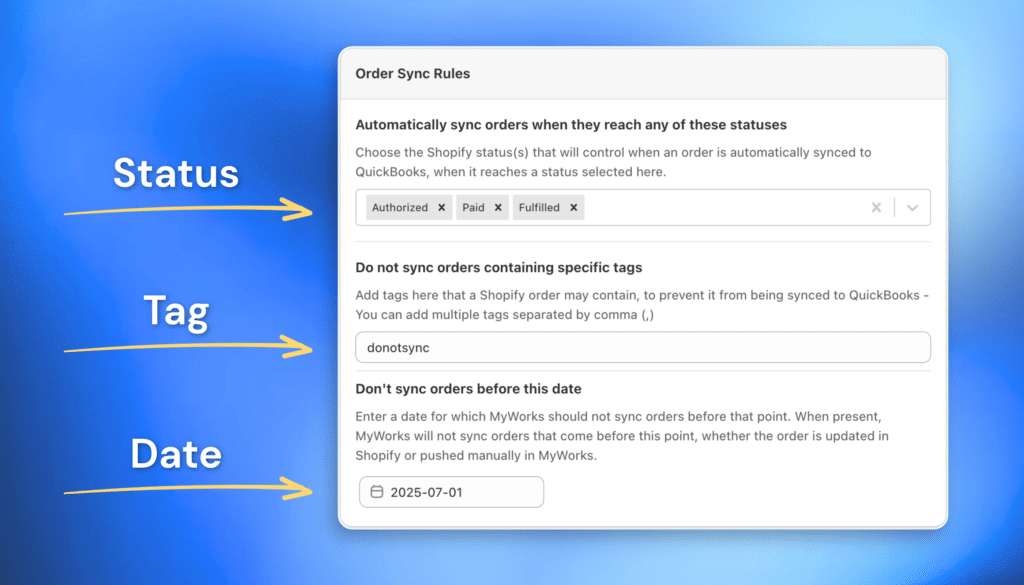
Start with your sync rules. These are the filters that decide which orders get sent, and they’re often set up on day one to keep test orders and old orders out of your books, so they’re easy to forget about. In MyWorks, look for the Order Sync Rules under Settings > Order. There are three:
- Status: the order only syncs once it reaches a payment or fulfillment status you’ve selected. Out of the box, that’s Authorized or Paid.
- Tag: any order carrying a tag you’ve listed here is skipped.
- Date: any order dated before the date you’ve set is skipped.
Open the page and check the missing order against all three: its status, its tags, and its date.
| Quick check: if the missing orders all share a status or a tag, or all fall before the same date, you’ve found your answer. |
If it’s the status or tag rule, you can rescue the order without changing a thing. Push it manually from MyWorks Sync > Push > Order, and it’ll go through. Then check that the rule still makes sense for how you sell today, so the next order syncs on its own.
The date rule is different. MyWorks won’t sync an order dated before that cut-off, even when you push it by hand, so move the date back first and then push. Unlike the other two, this rule does leave a line in the log, saying the order was prevented from syncing because of its date.
2. Payments Land in the Wrong Account
The order made it into QuickBooks Online, but the payment landed in the wrong bank account.
Every Shopify order carries a payment method, like Shopify Payments, PayPal, a manual bank transfer or cash at the till. Your sync app keeps a list that matches each method to a QuickBooks Online bank account. Add a new gateway, open a second location or start taking manual payments, and the new method can turn up with no account matched to it.
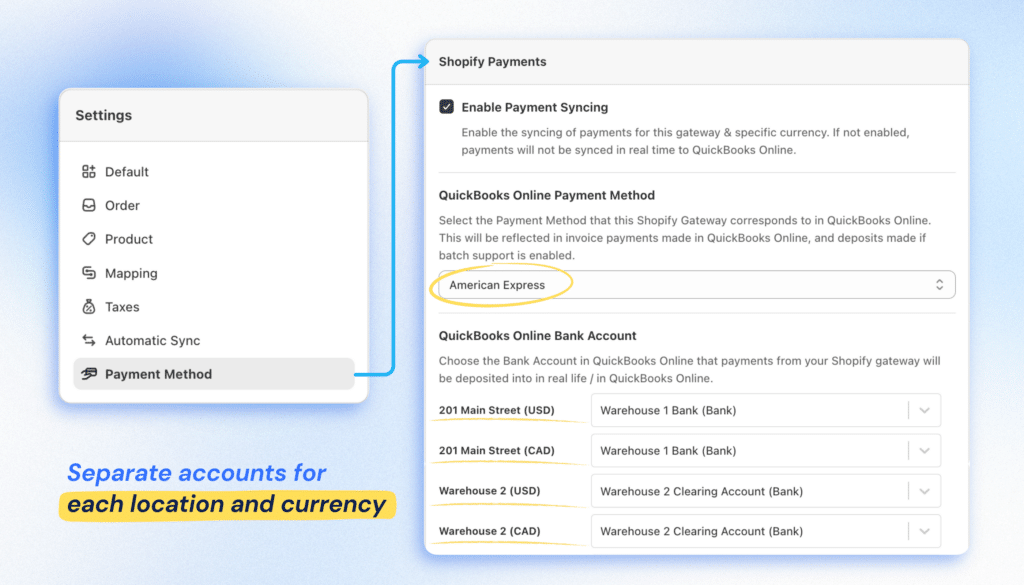
In MyWorks, that list is on the Settings > Payment Method page. Each payment method in your store gets its own section there, with the QuickBooks Online bank account its payments go to. If you sell in more than one currency or location, each one gets its own account too (accounts for extra locations need the Scale plan or above).
Look at the last section first. It’s called Other, and it catches orders that come in without a payment method, like a manual payment or an order you’ve marked as paid yourself. Because it sits at the bottom of the page, it’s the easiest one to miss.
Make sure every section points to the right account, including Other. For Shopify Payments, that’s usually a clearing account rather than your bank account. If a method has no account set at all, the order still syncs but the payment doesn’t, and the log shows “QuickBooks Online Bank Account not selected”. Once every section is set, push the affected orders again, and they’ll land where they should.
For the Shopify side of payment methods, see what you need to know about Shopify payment methods.
3. A Line Shows a Placeholder Product
The order synced, but one of its lines shows a placeholder product instead of what the customer bought.
It means your sync app couldn’t find a QuickBooks Online item to match that product to. This usually happens when you add a new product to Shopify, and there isn’t a matching item for it in QuickBooks Online yet.
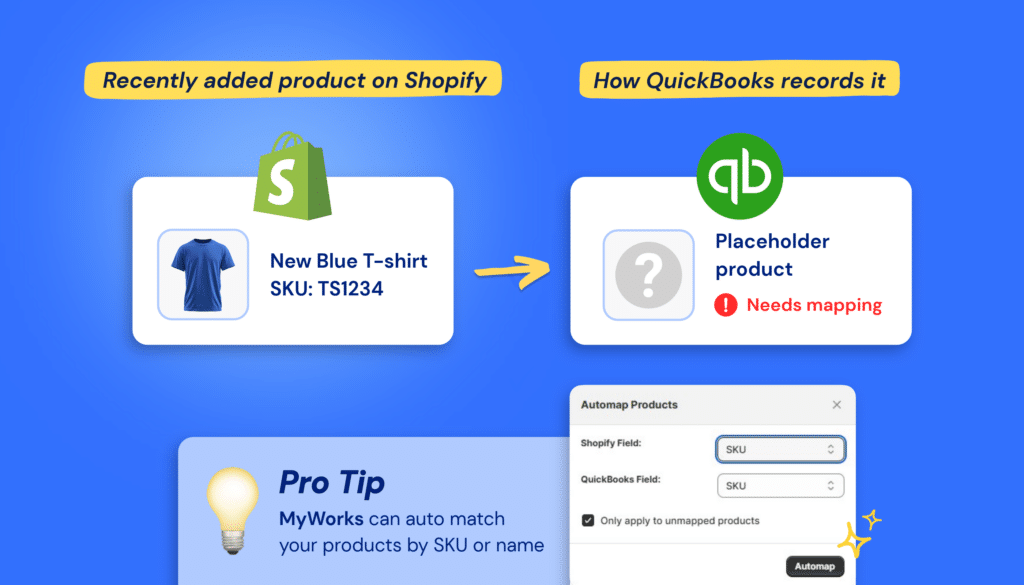
If you’ve set a default product for this, the order still syncs, with that placeholder standing in for the missing product. Nothing turns red in the log, so it slips past you for a while. In the meantime, those sales are counted under the placeholder instead of the real product, and your best-sellers can end up looking slower than they are.
In MyWorks, that placeholder is the Default for Unmatched Products, under Settings > Default. If it’s left blank, the order fails instead and shows in red in the log. MyWorks can match products by SKU when the order syncs, as long as Use Shopify Line Item SKU to find a matching QuickBooks item is turned on under Settings > Order. For anything else, go to MyWorks Sync > Map and pair it on the Product or Variation tab, either by hand or with Automap, which pairs products by SKU or name.
If the item’s already in QuickBooks Online but isn’t in the dropdown, MyWorks just hasn’t picked it up yet. Click Rescan Data on the Map page, choose Rescan QuickBooks Products, and it’ll show up.
Once it’s paired, push the order again, and the line will show what you sold.
4. Duplicate Customers, or Error 2500 “Not Found”
The order synced, but QuickBooks Online now has two copies of the same customer.
Your sync app has to decide which QuickBooks Online customer each order belongs to. MyWorks goes by name or email. If a customer matches, the order goes to them, and if nobody does, it creates a new customer. So when a returning customer checks out with a new email address and types their name differently (say Jon Smith last time and Jonathan Smith this time), nothing matches, and you get a second copy.
Start in QuickBooks Online. Merge the extra copy into the one you want to keep. Its orders move across with it, and the merge can’t be undone, so check you’ve got them the right way round. Then tell your sync app which customer to use from now on, so the next odd email address doesn’t create a third copy. In MyWorks, click Rescan Data and choose Rescan QuickBooks Customers first, so MyWorks sees the merged list. Then go to Map > Customer and point the Shopify customer at the one you kept. If you skip the rescan, the next order for that customer can bounce with the error below.
If the log shows Error 2500 “not found”, QuickBooks Online can’t find the customer the order was sent to. That customer was there once, but has since been merged or deleted in QuickBooks Online, and your sync app is still pointing at the old record.
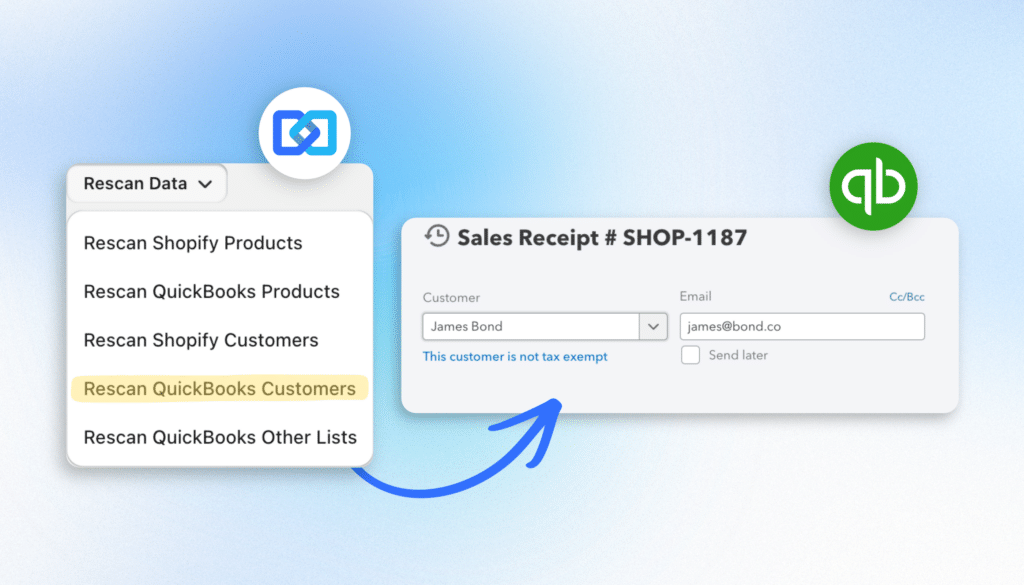
If they were merged, MyWorks needs to rescan your customer list. Click Rescan Data, choose Rescan QuickBooks Customers, re-map the customer on Map > Customer, and push the order again. If they were deleted, they’re inactive, because QuickBooks Online hides a customer who has transactions rather than deleting them. Open Customers & Leads, tick Include inactive, and choose Make active next to their name. Then rescan, re-map the customer on Map > Customer, and push the order again.
5. Unpaid Orders Aren’t Syncing
Your paid orders sync fine, but any order that hasn’t been paid yet, like a wholesale order on 30-day terms or one waiting on a bank transfer, never shows up in QuickBooks Online.
Your sync app records each order in QuickBooks Online as either an invoice or a sales receipt. An invoice records the sale now and waits for the payment, while a sales receipt records both together. Say a $1,200 wholesale order comes in on 30-day terms. As an invoice, it sits open in QuickBooks Online until the customer pays. A sales receipt always records the order as paid, so it’s the wrong fit for an order that hasn’t been paid yet.
| On Intuit’s connector? There’s no setting to change here. Intuit’s migration notes say the connector can’t import orders as unpaid. |
In MyWorks, go to Settings > Order. The setting is called Sync Shopify Orders as, and it’s on sales receipt by default. Switch it to Invoice. Then, in the Order Sync Rules on the same tab, add Pending to the statuses that trigger a sync. Out of the box, that list only has Authorized and Paid, so an unpaid order waits there, whatever the transaction type. With both changes made, an unpaid order syncs as an open invoice, and when the customer pays, MyWorks adds the payment to it.
If you’re on the Scale or Soar plan, that setting also offers Based on Order Tag, which syncs each order as a different transaction type depending on its tag. It only syncs orders that carry one of the tags you’ve listed, so set up the tags before you turn it on.
6. Error 6000: “Inclusive Tax Type Is Not Allowed”
The log shows a red line that reads “Error:6000: [A business validation error has occurred while processing your request, Business Validation Error: Inclusive Tax Type is not allowed]”. Sometimes it’s Error 530 instead: “The field IsTaxIncluded is not supported by this implementation”. Both mean the same thing.
The cause is a Shopify setting, not your sync app. Under Settings > Taxes and duties, there’s an option called “Include sales tax in product price and shipping rate“. It’s meant for countries where the shelf price already includes the tax, the way VAT works in the UK. A US store normally works out the tax at checkout and adds it as a separate line. With this setting on, the tax is folded into every price instead, and a US QuickBooks Online company won’t accept a price with tax already inside it.
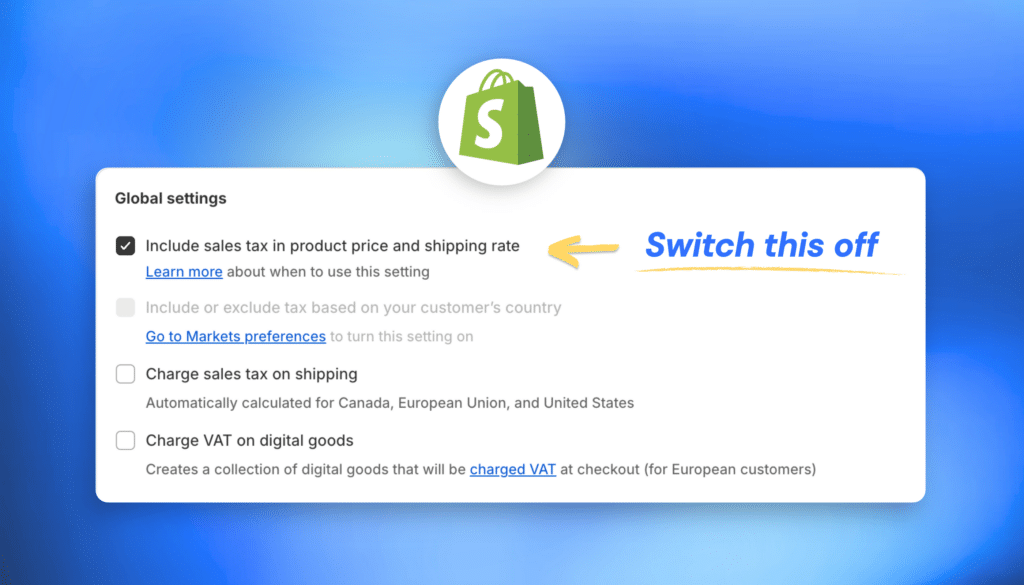
Turn the setting off in Shopify, and orders placed from then on sync normally. Orders placed while it was on may still fail when you push them again. If a few do, enter them into QuickBooks Online by hand.
7. Error 6140: Duplicate Document Number
Your log has a red line reading “Error:6140: [Duplicate Document Number Error, Duplicate Document Number Error: You must specify a different number. This number has already been used.
QuickBooks Online numbers every transaction itself, and it won’t let two share a number. Custom Transaction Numbers is a setting that lets you type in your own numbers. Once it’s on, an invoice typed in by hand, or one sent over by another app, can end up with the same number as your Shopify order. When the order comes in, that number’s already in the books, and QuickBooks Online rejects it.
If you never turned that setting on, it may have turned itself on. It’s a known Intuit issue with the new invoice layout. Editing or saving an invoice there switches Custom Transaction Numbers back on, so 6140 can turn up weeks after you’d switched it off.
The fix starts in QuickBooks Online. Search for the number from the error, find the transaction that already has it, and renumber or remove it. Then, in MyWorks, go to MyWorks Sync > Settings, click Rescan Data, choose Rescan QuickBooks Other Lists, and push the order again.
If you don’t need to type in your own numbers, switch Custom Transaction Numbers off under Settings > Account and settings > Sales > Sales form content and leave it off. QuickBooks Online then goes back to numbering everything itself. To stop it switching itself back on, also go to Custom Form Styles, edit your default invoice and sales receipt forms, and make sure Use custom transaction numbers is unticked on the Content tab.
8. A Second Store’s Orders Fail on Duplicate Numbers
You’re syncing two Shopify stores into one QuickBooks Online company, and orders from the second store have started failing. Each failed order carries a number the first store has already used, and the log usually calls it a Customer Mismatch because that number already belongs to the other store’s customer.
Every Shopify store numbers its orders from #1001 upwards, so sooner or later two stores hand out the same number. QuickBooks Online won’t accept two transactions with the same number.
There are three ways to keep the numbers apart.
1. Give each store its own prefix in Shopify. In each store, go to Settings > General > Order ID format. The Prefix field holds a “#” by default. Change it so one store’s orders read A-1001 and the other’s B-1001, and every order in QuickBooks Online then shows which store it came from. Then tell your sync app to carry that prefix across. In MyWorks, that’s Use Shopify custom order numbers (if present), under Settings > Order. Set it up before the stores start syncing, because changing it after orders have synced can create duplicates.
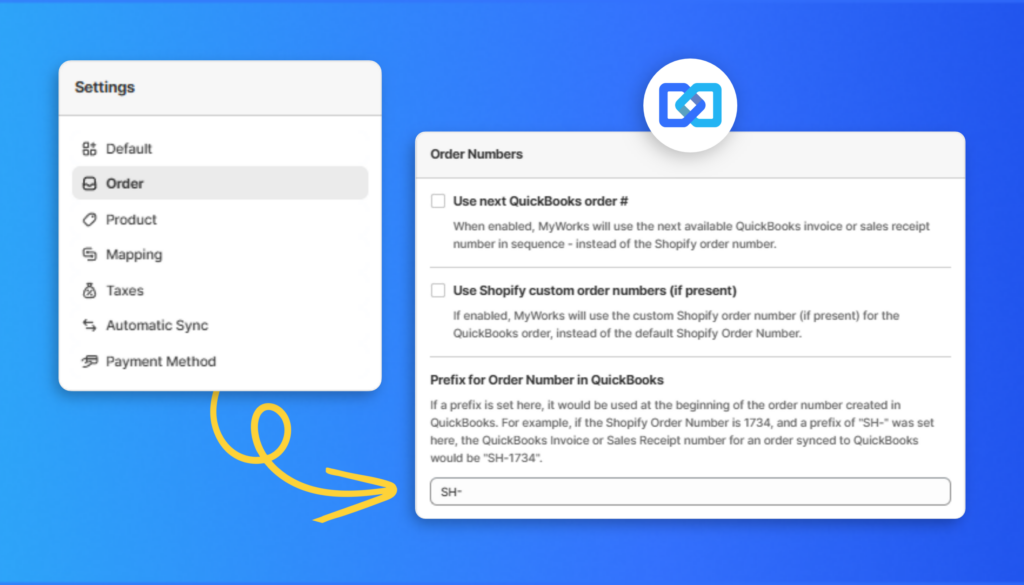
2. Or add a prefix in MyWorks. Under Settings > Order, give each store its own prefix, such as SH-. MyWorks uses that prefix to recognize orders it’s already synced, so once it’s set, leave it alone.
3. Or turn on Use next QuickBooks order # in MyWorks. It’s on all paid plans, and Custom Transaction Numbers has to be off in QuickBooks Online first (see error 7). With it on, MyWorks ignores the Shopify order number and uses the next available number in QuickBooks Online. That makes it the one to pick if you also enter orders by hand, because every order gets the next number in line, whoever entered it. A hand-entered invoice saves as #1261, the next Shopify order syncs as #1262, and the invoice after that is #1263. Once it’s on, some earlier orders may show as “not synced” in Shopify. They’re still in QuickBooks Online, and that label is safe to ignore.
If you look after several stores for clients, the best practices for agencies and accountants post covers the setup side.
9. Every Order Shows Up Twice
Every order is in QuickBooks Online twice. Sometimes the two copies have different numbers or different transaction types, or one is paid, and the other is still open.
Two copies nearly always means two apps are sending orders into the same QuickBooks Online company. Often the second one is Intuit’s own QuickBooks Shopify Connector, or the older OneSaas version of it, still running from before you switched apps.
First, work out which copy came from where. In QuickBooks Online, pull up either copy and go to More > Audit History. It shows when the transaction was created and by whom.
If you’re on MyWorks, there’s a quicker way. Click the Synced badge on the order in Shopify, and it opens the transaction MyWorks created. Or search the order number in MyWorks Sync > Log. That copy is the one to keep. MyWorks makes one transaction per order and updates it when the order changes, so the second copy came from the other app.
Then open Apps > My apps in QuickBooks Online, find the second app, and disconnect it. Now delete the copies it created. If it’s one of Intuit’s connectors, go to Accounting > Integration transactions, which lists the transactions the connector created. Check the audit history on any copy you’re not sure about, and ask your accountant before deleting anything in a period you’ve already closed.
Three More Reasons Orders Aren’t Syncing
1. You’re connected to the wrong QuickBooks Online company
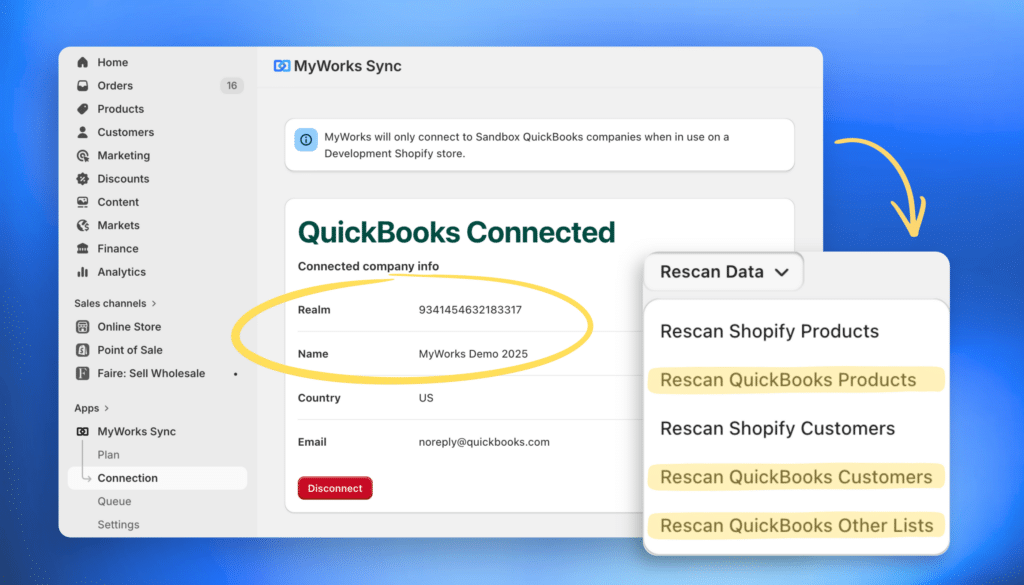
Your orders are syncing, but into the wrong company, maybe a test company or an old company you stopped using. In MyWorks, go to MyWorks Sync > Connection and check the company name and Realm ID. If it’s the wrong company, disconnect, then connect to the right one. Then click Rescan Data and run all three QuickBooks options (Customers, Products and Other Lists), so MyWorks picks up the new company’s lists. Finish by pushing one test order to make sure it ends up in the right company.
2. Refunds aren’t syncing
Orders come through, but refunds don’t. In QuickBooks Online a refund is its own transaction, separate from the sale, so your sync app has to send it separately. In MyWorks, a refund goes across as a Refund Receipt, as long as Enable Refund Syncing is on for that payment method. It’s off by default, and it’s available on the Grow plan and above. The switches are under Settings > Payment Method, one for each method, and any method with it off keeps its refunds in Shopify. Turn it on for the methods that need it, then push the affected orders, and the refund on each one comes across too. Once they’re in, the payment reconciliation guide covers what refunds do to your payouts.
3. You’ve hit your plan’s monthly order limit
Every MyWorks plan except Soar includes a set number of orders a month. Once you reach it, syncing pauses until the 1st or until you change plans, and you can’t push orders by hand either. The log shows “Monthly order sync limit reached”, and a banner appears on the MyWorks home page. The orders that hit the limit don’t retry on their own, so push them from Push > Order once syncing resumes.
What MyWorks Does When an Order Doesn’t Sync
Every fix in this post started in the same three places: the sync log, the settings and mappings that decide where an order goes, and the push button for sending it again. In MyWorks, all three sit inside your Shopify admin. The log records every order it tried to send, and when one fails it shows the error in red and says why. The order rules and the customer, product and payment method mappings are settings you can open and change yourself. Once the cause is fixed, you push the order again and it goes through.
If the log shows a Shopify QuickBooks error this post doesn’t cover, support is included on every plan, around the clock. And if you’re still weighing up which app to use, the 5 best Shopify QuickBooks integrations guide puts MyWorks next to the others.

Rather not do this again? Book a 1-on-1 demo, and we’ll go through your rules and mappings together, so next time an order goes missing, you’ll know where to look.
FAQs About Shopify and QuickBooks Online Sync Errors
1. Why are my Shopify orders not syncing to QuickBooks Online?
Usually because a sync rule held them back, a mapping sent them somewhere unexpected, your plan’s monthly order limit was reached, or QuickBooks Online rejected them with an error. When a QuickBooks Shopify integration isn’t working, your sync log tells you which. No entry at all means a rule stopped the order before any attempt, a red entry names the error, and an order that arrived wrong points to a mapping. If every order is showing up twice, a second app is syncing into the same company.
2. How long does a Shopify order take to sync to QuickBooks Online?
It depends on the app. MyWorks sends orders on a schedule you set. It’s every hour by default, and you can set it to run as often as every 5 minutes on the Grow plan and above. Your order rules still decide which orders go. Intuit’s connector syncs every few hours, according to Intuit’s migration notes, and puts transactions in a For review tab first, so a wait of a few hours there is normal.
3. How do I resync a Shopify order to QuickBooks Online?
Your sync app should have a way to re-send one order. In MyWorks, go to MyWorks Sync > Push > Order and push the one you want. A manual push gets past a status or tag rule, but not the date rule, and if the order has a refund in Shopify, the push brings that across too.
4. Why are my Shopify orders duplicated in QuickBooks Online?
Almost always because two apps are syncing into the same QuickBooks Online company, often an old connector still running from before you switched. Open either copy in QuickBooks Online and check More > Audit History to see which app created it, then disconnect the extra app under Apps > My apps and delete the copies it made. If you’re on MyWorks, it updates the transaction it already created rather than making a second one, so its copy is the one to keep.
5. What does Error 6000 mean when syncing Shopify to QuickBooks Online?
Error 6000 is QuickBooks Online’s general “business validation error”, and the words after it tell you what failed. When it says “Inclusive Tax Type is not allowed”, the cause is a Shopify tax setting, covered in error 6 above. When it names something else, a customer, product or account was usually deleted in QuickBooks Online after your sync app last looked. In MyWorks, click Rescan Data, choose the list that matches, and push the order again.